Compose
All plansFrom (any send-as address), To, Cc, Bcc and Reply-to. Drafts save as you go.
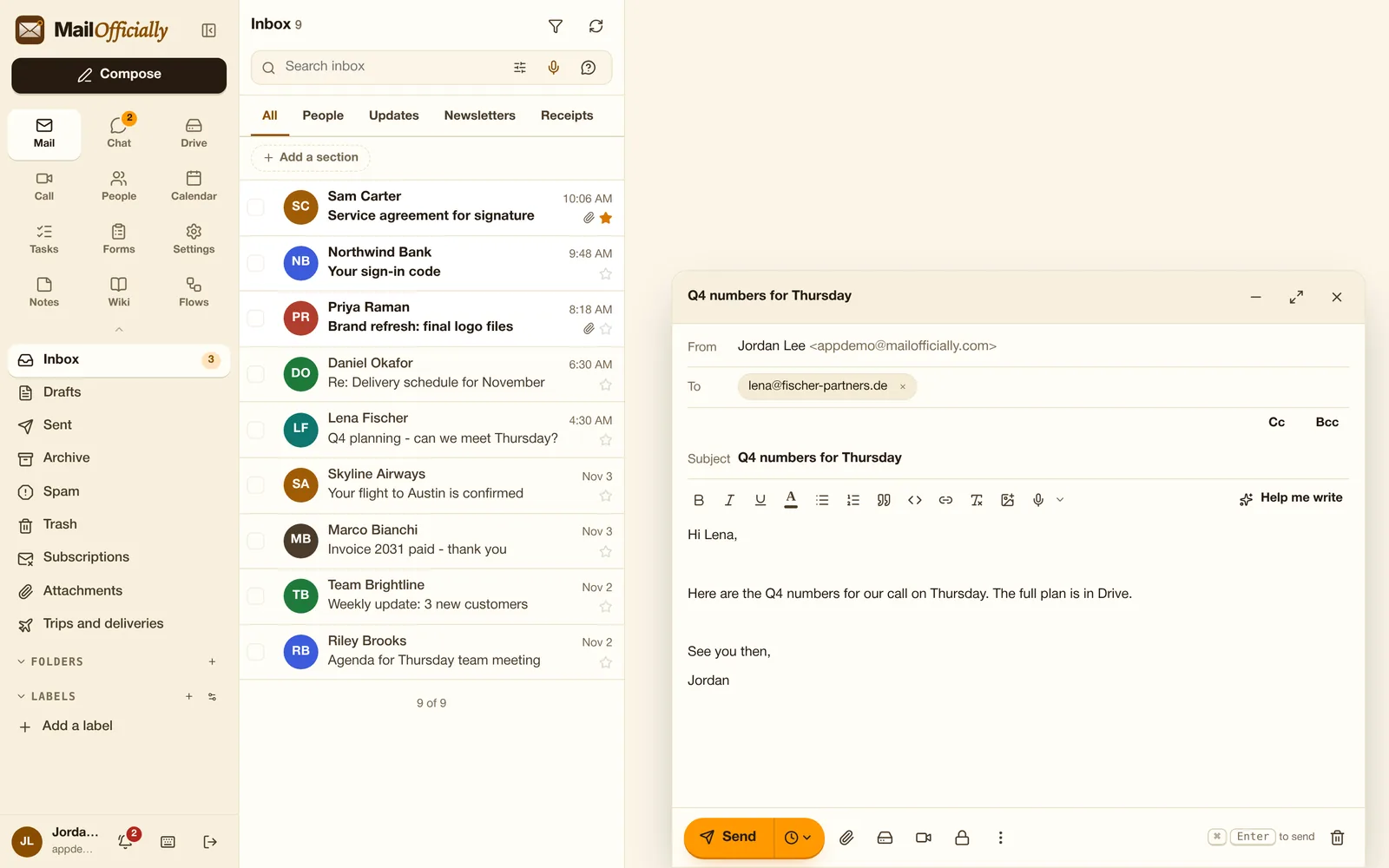
Use it when Write a new email from any of your addresses, add Cc and Bcc, and close it any time: the draft is saved.
 MailOfficiallyDocs
Everything you need to write, schedule, protect and follow up on email.
From (any send-as address), To, Cc, Bcc and Reply-to. Drafts save as you go.
Use it when Write a new email from any of your addresses, add Cc and Bcc, and close it any time: the draft is saved.
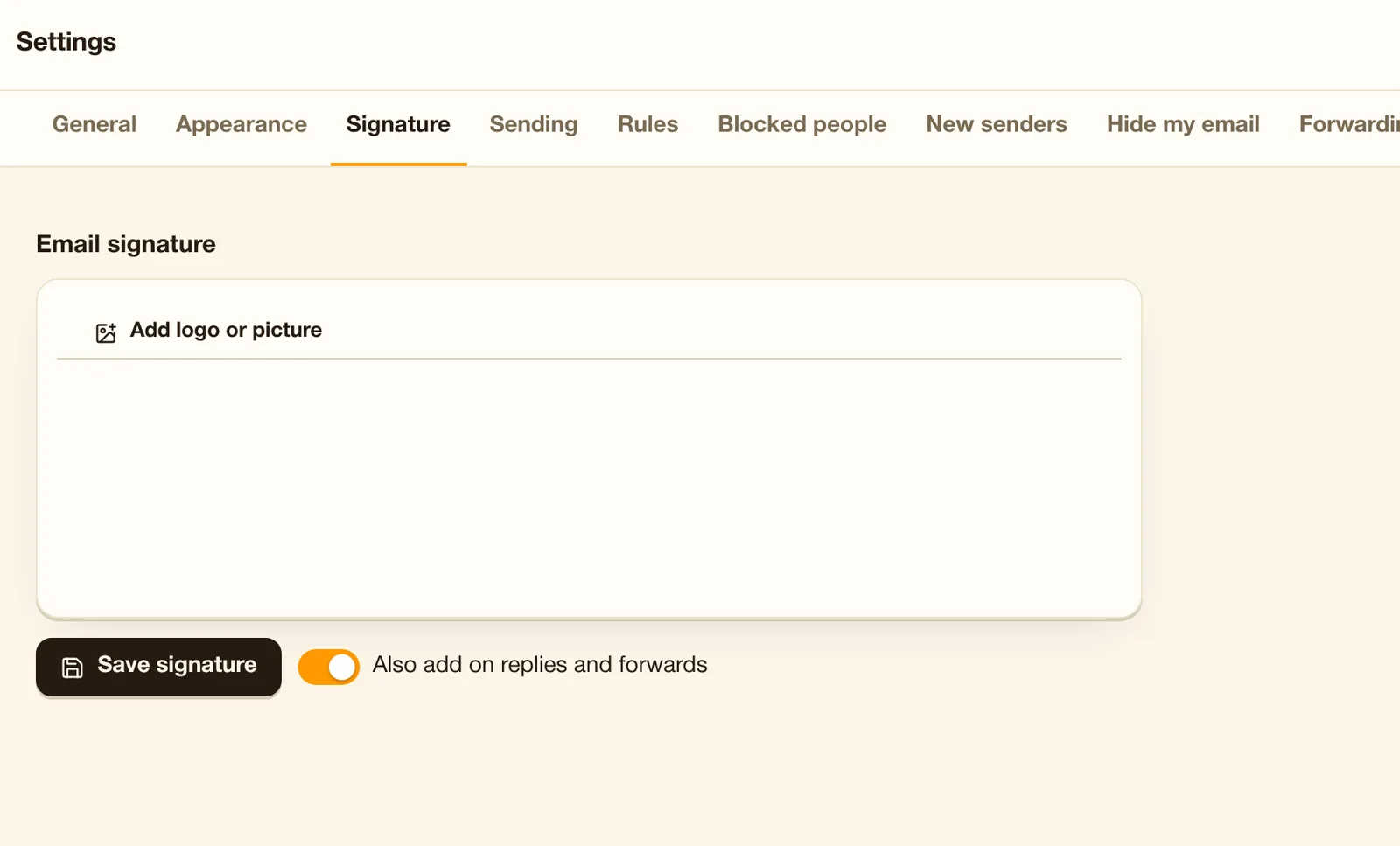
One signature per sending address, with your logo; it switches when you change From. Your company can add a company signature and disclaimer too.
Use it when You write as both sales@ and yourself: each address gets its own signature, switched automatically.
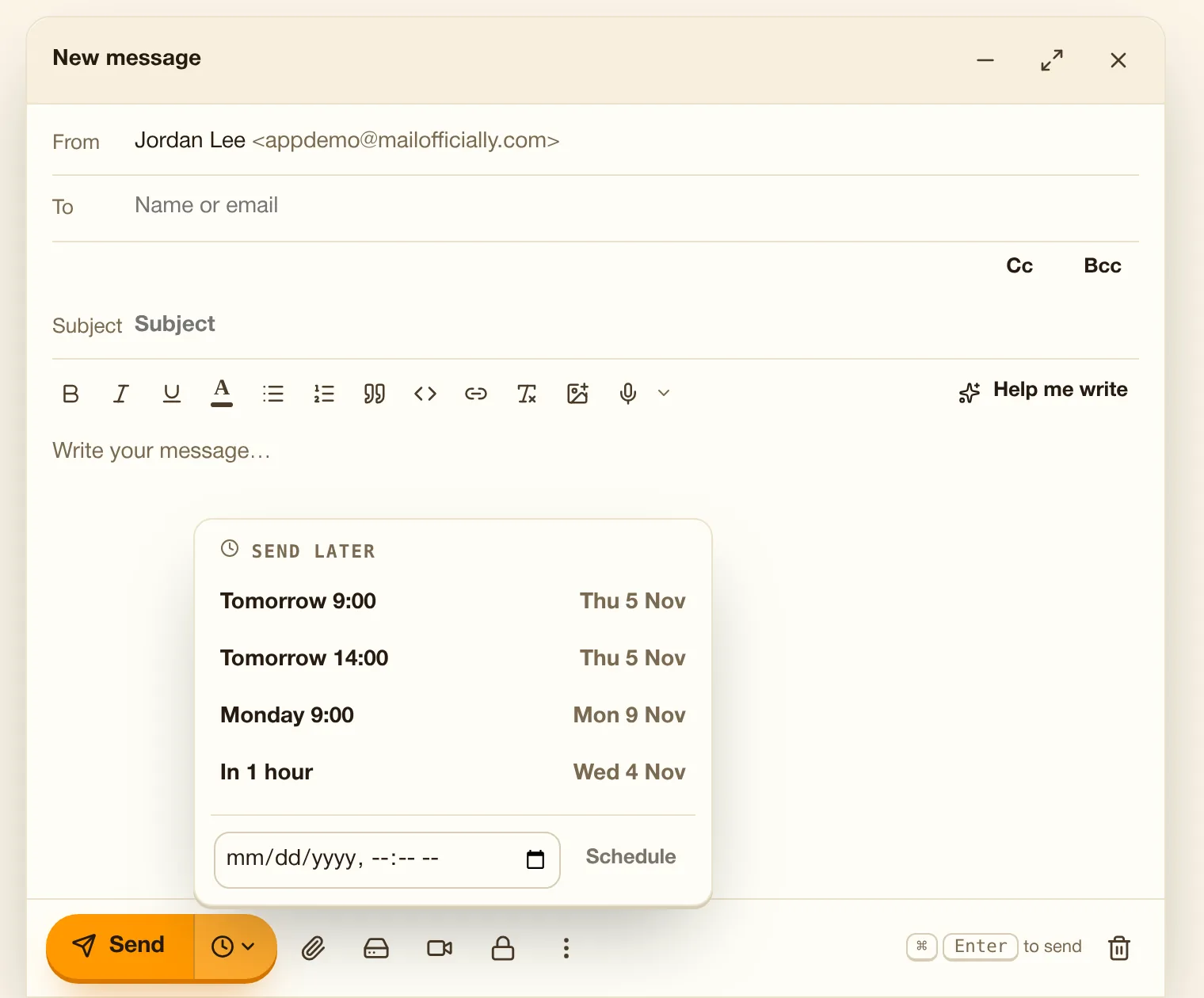
Schedule an email for Tomorrow 9:00, Monday 9:00, in 1 hour or any date and time. It sends from our servers even if your computer is off.
Use it when It's 11 pm: write the email now and schedule it for 9:00 tomorrow so it lands at the top of their inbox.
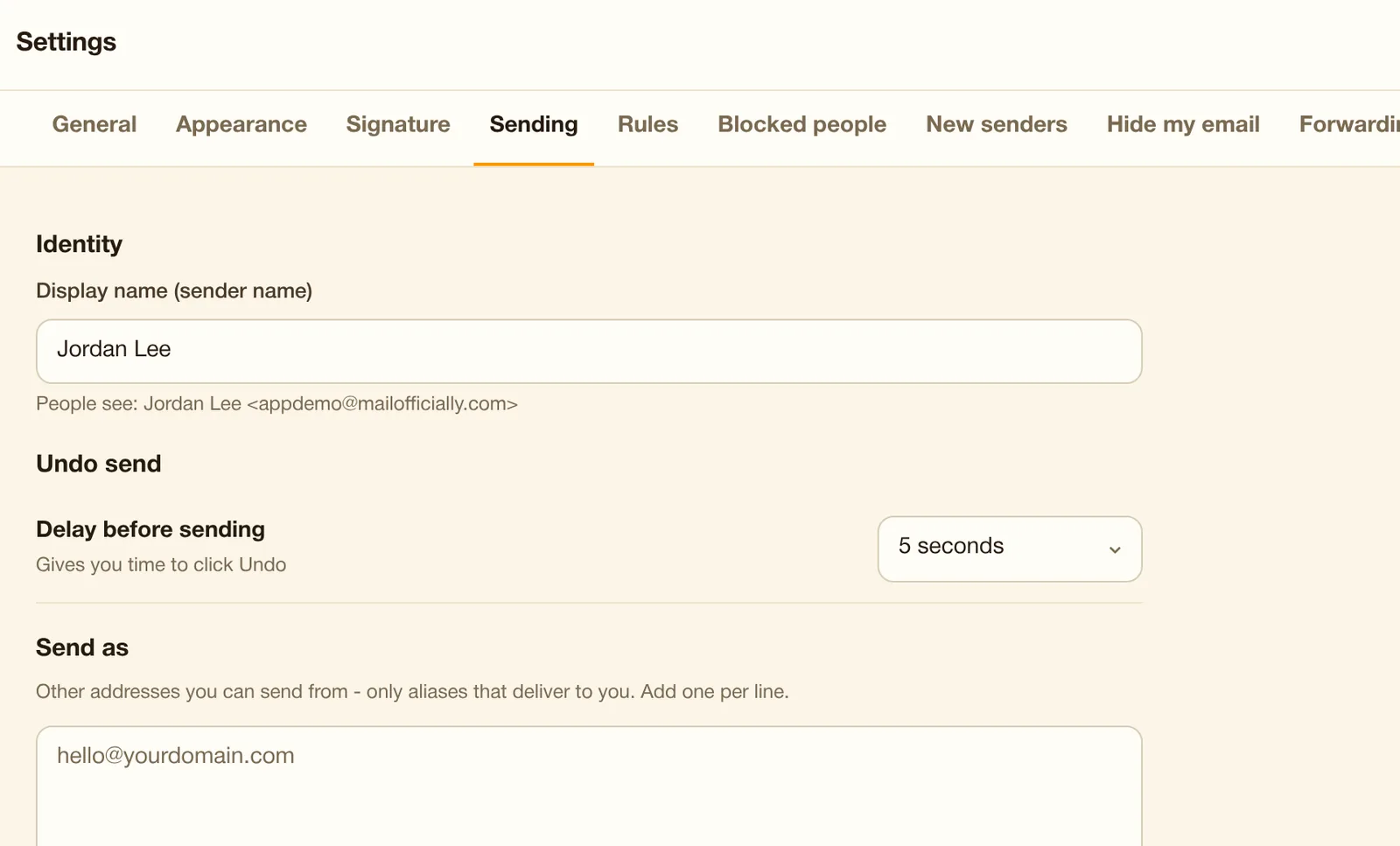
A short delay before sending so you can click Undo: off, 3, 5, 10, 20 or 30 seconds.
Use it when You hit Send and notice the wrong attachment: click Undo within the seconds you set.
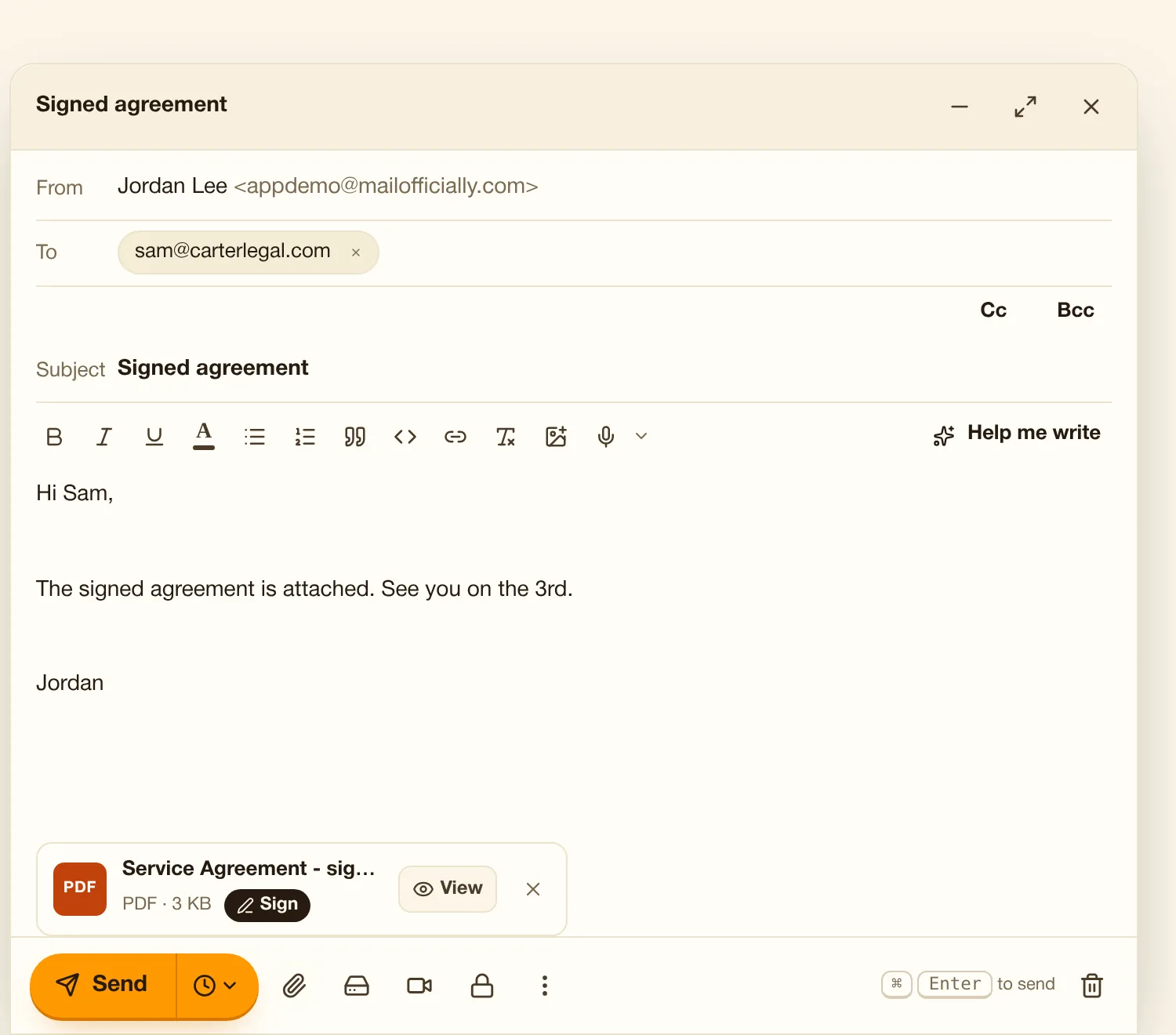
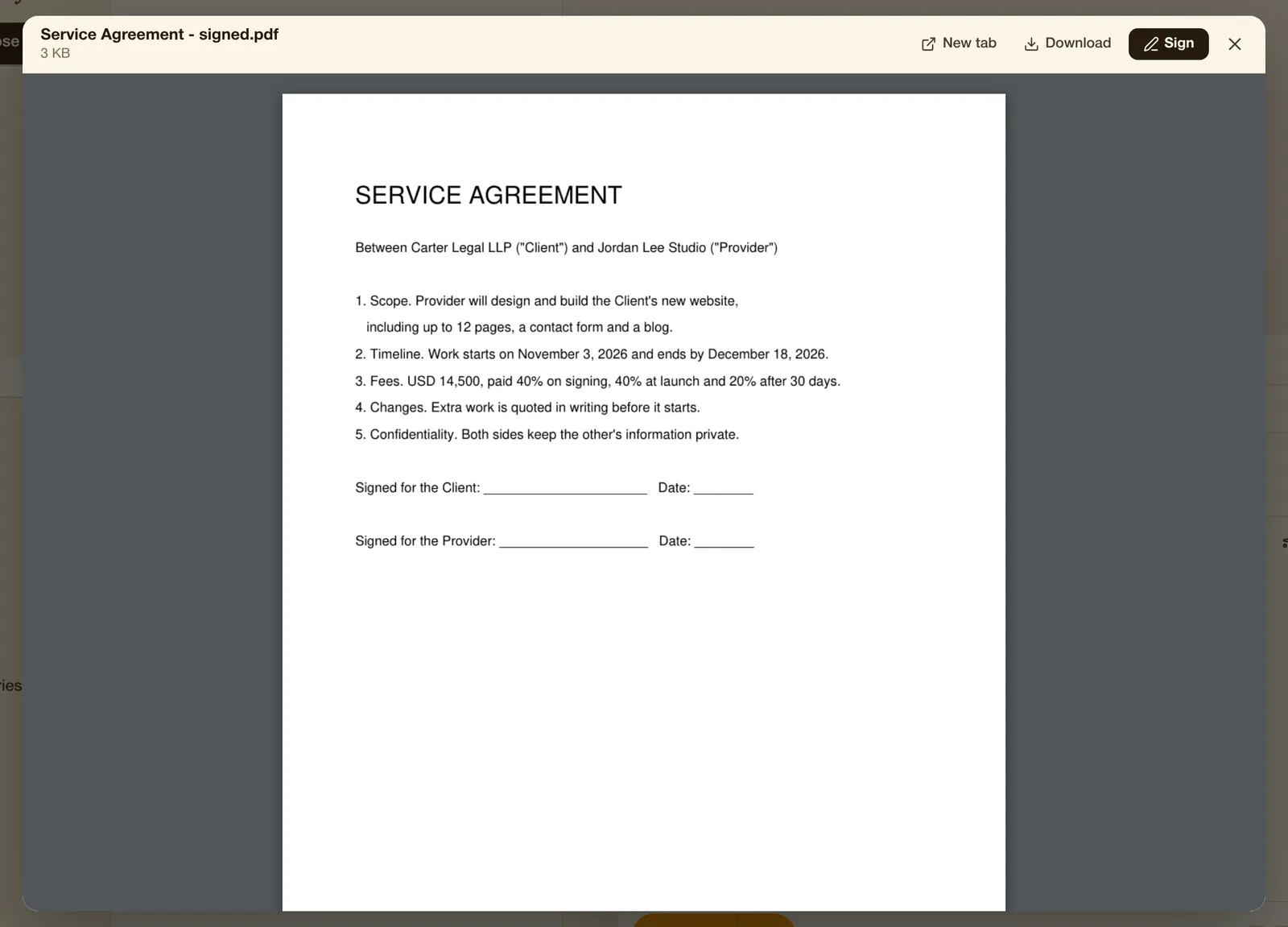
Every file you attach shows as a card with View and, on PDFs, Sign. View opens it in the same viewer as received mail, so you can check it is the right file and version before you press Send.
Use it when You attach "Agreement final v3.pdf": press View to make sure it really is the signed version before it goes to the client.
Send from your aliases and team addresses, and pick a default.
Use it when You answer customers as support@ and partners as yourself, from the same inbox.
The email is kept encrypted on our servers. It opens with a one-time code sent to the recipient's email or, safer, a passcode you give them another way (by phone, say). It can be opened for 1 to 30 days; a copy already read or saved can't be taken back. Called "Confidential" when you write.
Use it when You send a patient's lab results or a salary letter: it opens only with a code and stops opening after the days you choose.
Attach up to 25 MB; bigger files go to Drive automatically as a link. Attach straight from Drive.
Use it when A 300 MB video for a client: it goes as a Drive link automatically instead of bouncing.
While writing: add a Call Officially meeting link to the email.
Use it when Proposing a call by email: add a meeting link while writing so they can click and join.
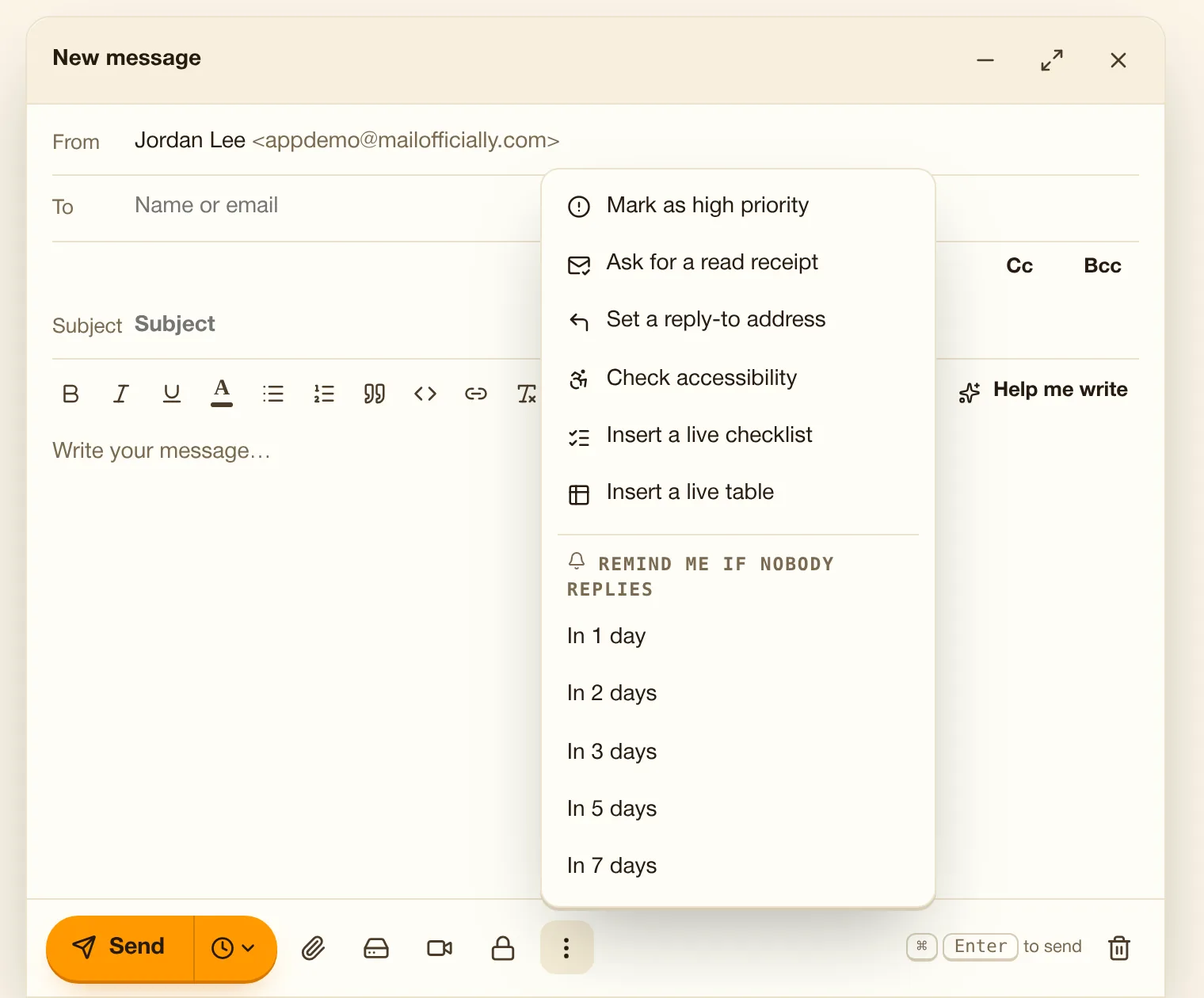
Mark as high priority, ask for a read receipt or set a reply-to address.
Use it when An urgent contract change: mark it high priority and ask for a read receipt.
Be reminded if nobody replies in 1, 2, 3, 5 or 7 days.
Use it when You send a quote: be reminded in 3 days if the client hasn't replied.
"Received 3 days ago. Reply?" and "Sent 3 days ago, no reply yet. Follow up?" notes in your list.
Use it when "Sent 3 days ago, no reply yet. Follow up?" appears in your list so nothing slips.
Finds missing picture descriptions, low contrast, tiny text, long ALL CAPS and unclear link text, with fixes.
Use it when Before a newsletter goes out, find missing image descriptions and low-contrast text, with fixes.
Dictate your email ("new line" and "new paragraph" work); choose the language. Works in Chrome, Edge and Safari.
Use it when Dictate a quick reply while walking between meetings.
Sign or encrypt with your own certificate.
Use it when A bank requires signed and encrypted email: sign it with your own certificate.
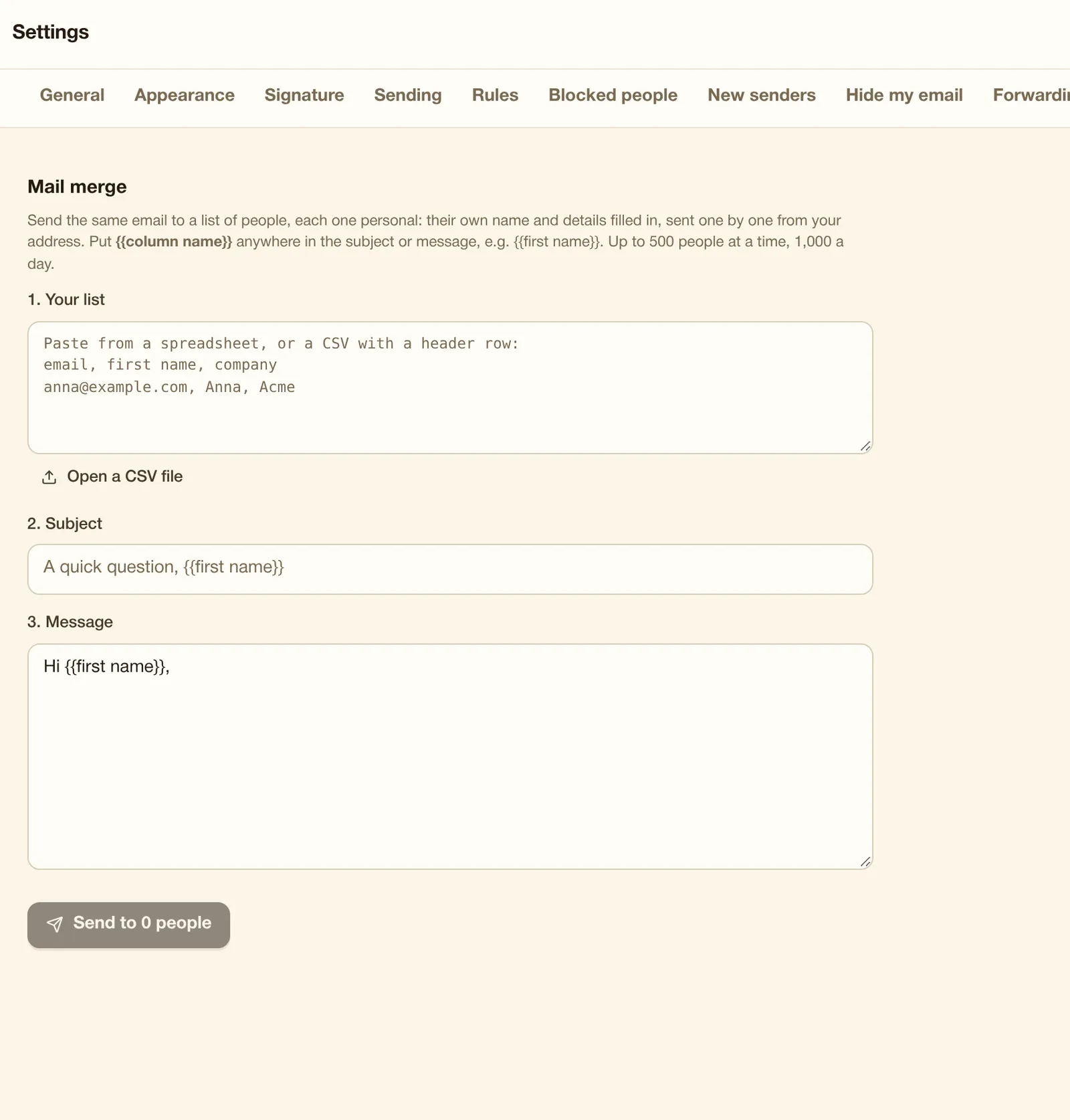
Send the same email to a list, personalized per person ({{first name}}), one by one from your address. Up to 500 people per list; up to 500 a day on Stamp and 1,000 a day on Seal and Crest.
Use it when Invite 200 customers to an event: one email, personalized with each first name, sent one by one from you.
A checklist or small table inside an email that MailOfficially colleagues can check off and fill; others get a copy and a "See the latest version" link.
Use it when Ask 5 colleagues to tick who brings what to the client visit: everyone sees the latest version.
Saved replies you insert in one click.
Use it when Your support team answers the same 10 questions: insert a saved reply in one click.
If you lose your connection, the email sends by itself when you are back online.
Use it when On a flight with no Wi-Fi: write and press Send; it goes when you land.
Bold, lists, quotes, links, colors and pictures, with your own default font, size and color for every new email.
Use it when You prefer 12-point Georgia in dark blue: every new email starts in your style.
If your company protects sensitive data, MailOfficially warns you, sends it protected, or stops it before card numbers, ID numbers or patient details leave by mistake.
Use it when You paste a credit card number by mistake: MailOfficially warns you, protects it or stops it.
Emails that match your company's rules wait for a manager's approval before they go out.
Use it when New staff emailing clients: their messages wait for a manager's OK first.
The compose window opens over your inbox. Expand it to full screen with the arrows at the top, or minimize it to keep reading.
Files you attach show as the same cards as when reading, just above the toolbar.
View opens the attachment in the same viewer as received mail, so you can make sure it is the right file and version.
The three-dot menu at the bottom of the compose window holds the less common choices.
The clock next to Send schedules the email. It goes from our servers, even if your computer is off.
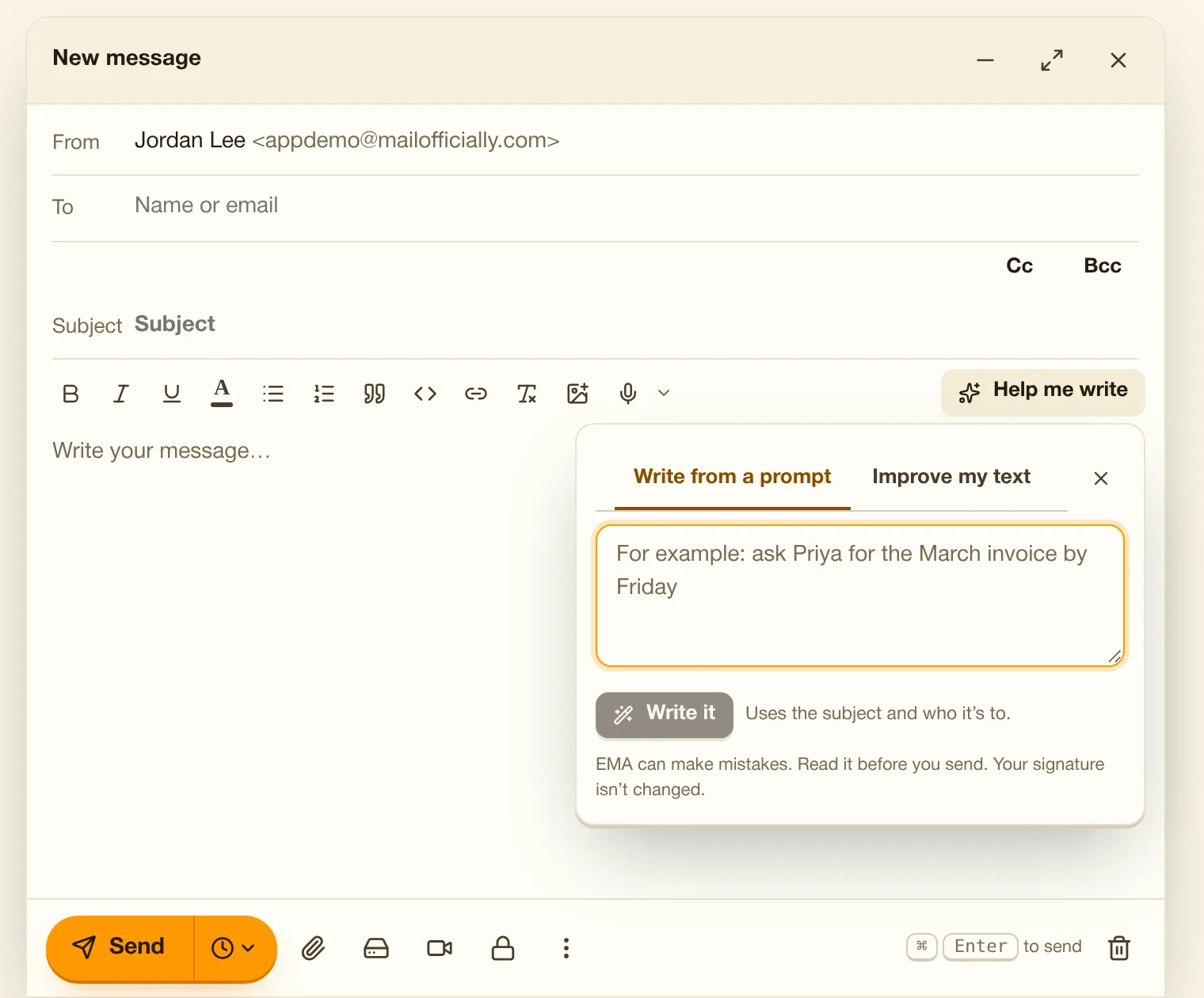
Describe the email in a line, or ask EMA to improve what you wrote. Your signature stays as it is.
One signature per sending address, with your logo or a picture.
Your sender name, how long Undo send waits, and the other addresses you can send from.
Send one email to a list, personal for each person: their own name and details filled in, sent one by one from your address.