A clean inbox that sorts itself, keeps you safe and reads like a conversation.
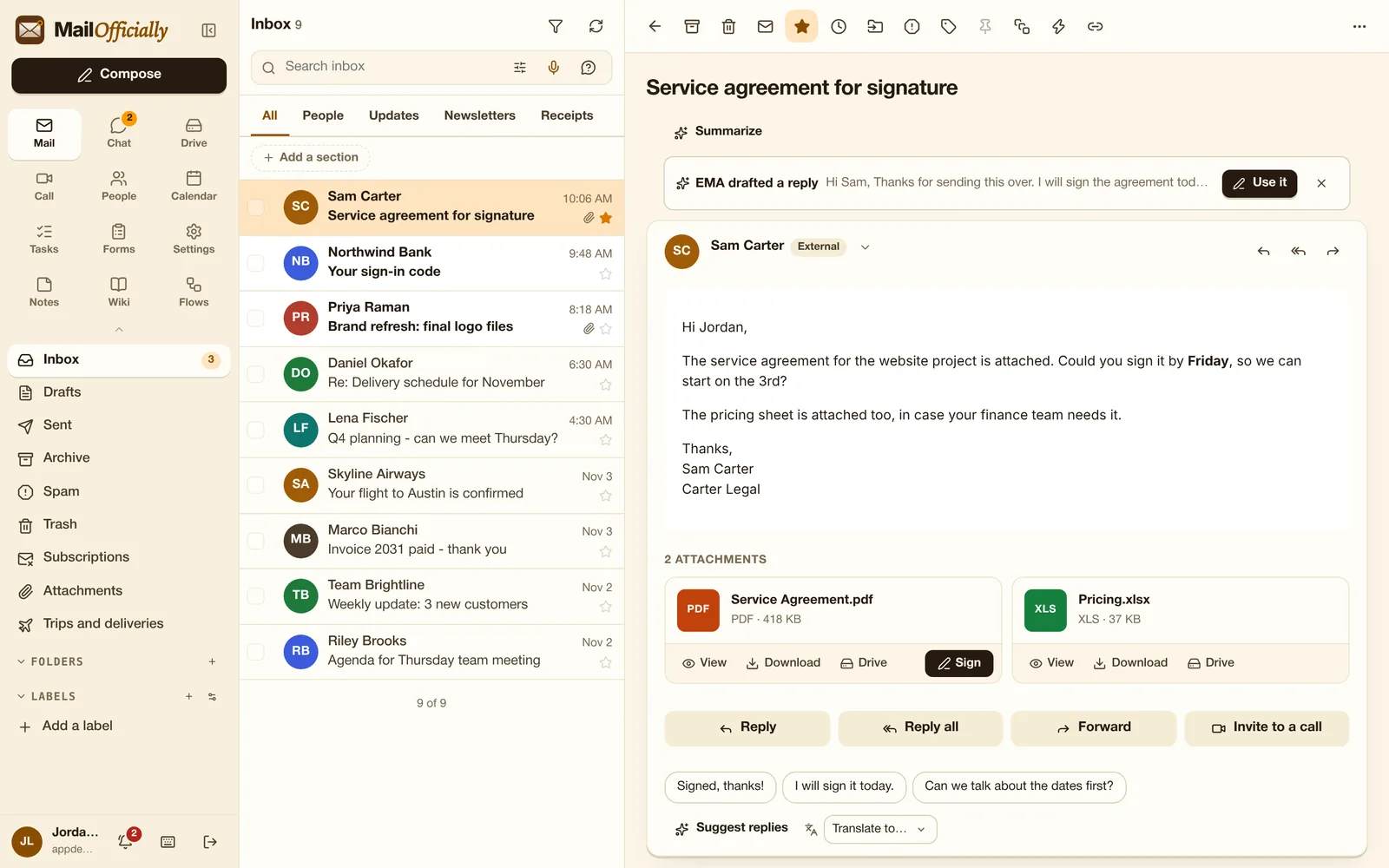
Your Inbox splits into All, People, Updates, Newsletters and Receipts, so real conversations are never buried.
Use it when Monday's 60 new emails: open People first for real conversations; newsletters and receipts wait in their own tabs.
Add your own tabs: "These people", "My VIP list" or "My company".
Use it when You want your top 5 clients separate: make a "My VIP list" tab and never miss them.
Replies are grouped with the original; the open email shows right of the list, below it, or full screen.
Use it when A long back-and-forth with a supplier reads as one conversation, open beside the list.
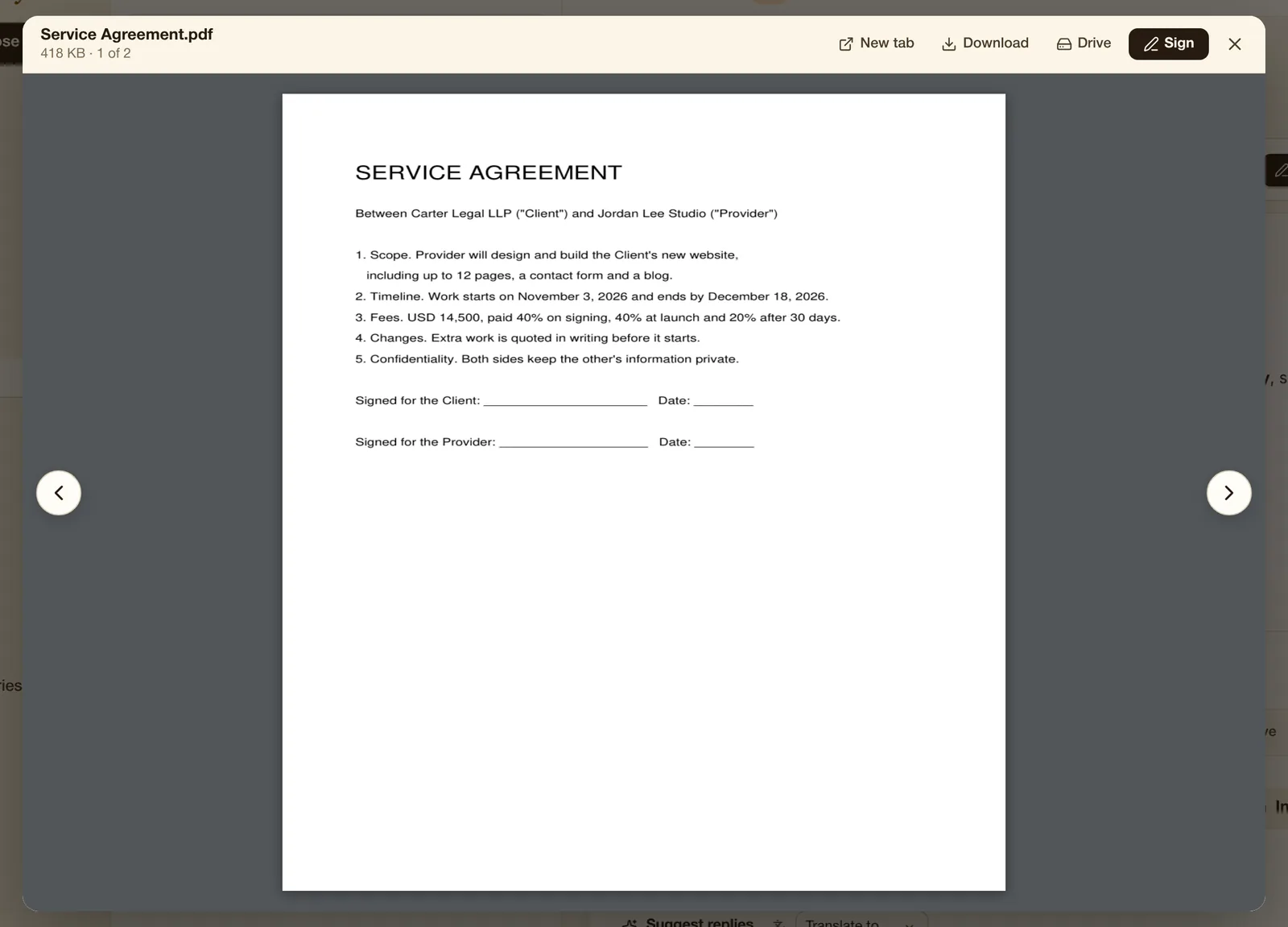
Each file shows as a card with its type and size and buttons: View, Download, Drive (save to Drive) and, on PDFs, Sign. View opens the file right inside MailOfficially, with arrows to move between the attachments and New tab, Download, Drive and Sign at the top.
Use it when A client sends a contract: press View to read it without downloading, then save it to Drive or sign it from the same screen.
Verification codes from banks and apps show on the inbox row and in a "Code in this email" bar, ready to copy without opening the email.
Use it when Your bank emails a code: copy it from the inbox row without opening the email.
Invitations show a card with Yes / Maybe / No and Join; your answer updates your calendar.
Use it when Lena invites you to a call: tap Yes on the card and it is in your calendar.
From an email you received: send everyone on it a calendar invitation with a video meeting link.
Use it when An email thread needs a quick talk: one click sends everyone on it an invitation with a video link.
Hidden tracking pixels are removed and pictures load through MailOfficially, so senders can't use them to learn when or where you opened their email. If you choose Show images or send a read receipt, the sender may learn that you opened it.
Use it when A marketing email tries to track when you read it: the hidden pixel is removed before you open it.
Banners for failed sender checks, look-alike domains and senders pretending to be a colleague; "External" badge on outside mail. "Show original" shows SPF, DKIM and DMARC results.
Use it when An email claiming to be from your CEO comes from a look-alike domain: a red banner warns you first.
Links are checked again at the moment you click them, then open, warn or block.
Use it when A link was safe when the email arrived but turns bad later: it is checked again at the moment you click.
Report phishing (tells your admins), Report spam / Not spam, and block a sender or their whole domain.
Use it when A fake invoice arrives: Report phishing alerts your admins and removes it; Block stops that sender for good.
Deliveries, flights and hotel stays show as a card with Track and copyable booking references. "Trips and deliveries" lists them all.
Use it when Your flight confirmation shows as a card with the booking reference ready to copy at the airport.
Your device reads the email out loud, with speed control.
Use it when Driving to a meeting: let your phone read the client's long email to you.
New replies to a noisy thread skip your inbox and go straight to Archive.
Use it when A reply-all storm about the office party: mute it and replies skip your inbox.
Leave any newsletter with one click, right from the email.
Use it when A store you bought from once keeps emailing: unsubscribe in one click, right from the email.
Signed and encrypted email is checked and opened automatically.
Use it when A law firm sends you a signed, encrypted email: it opens automatically and shows it is genuine.
At 7 am on weekdays: emails waiting on your reply, bills, today's meetings and follow-ups due.
Use it when Every weekday at 7 am you get one email listing what needs a reply, bills due and today's meetings.
Print an email or download it as a .eml file.
Use it when Your auditor wants a copy of an email: print it or download it as a .eml file.