A contract, an offer letter, an invoice to approve: the PDF arrives in your email, gets signed, and goes back out without ever landing on your computer. No Downloads folder full of copies, no uploading to a separate signing site, no hunting for the signed version to attach.
The usual way · 6 steps
1Download the PDF
2Find it in your Downloads folder
3Upload it to a signing website and sign in there
4Sign, then download the signed copy
5Attach the signed copy to a reply
6Clean up the copies left on your computer
With MailOfficially · 3 steps
1Press Sign on the PDF in your email
2Sign Officially opens with the document, already signed in. Sign it, or send it out for signatures
3The signed copy comes back into your email on its own, attached and ready to send, with a certificate of completion
A PDF you received
Press Sign on the attachment. Sign Officially opens with the document and you already filled in as the signer. Sign, and send the signed copy straight back to the sender, with "Signed:" and the original subject already filled in.
A PDF you are sending
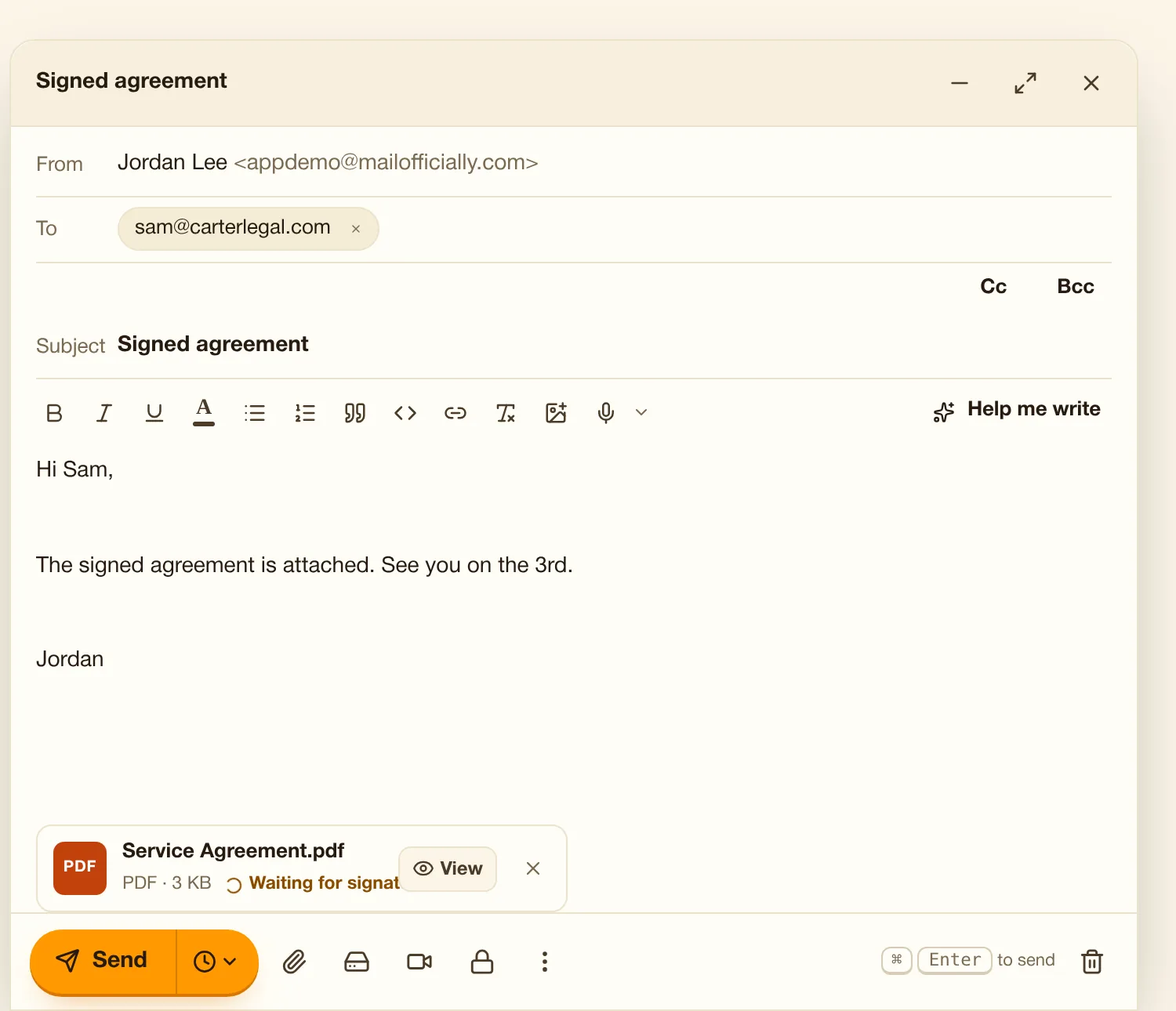
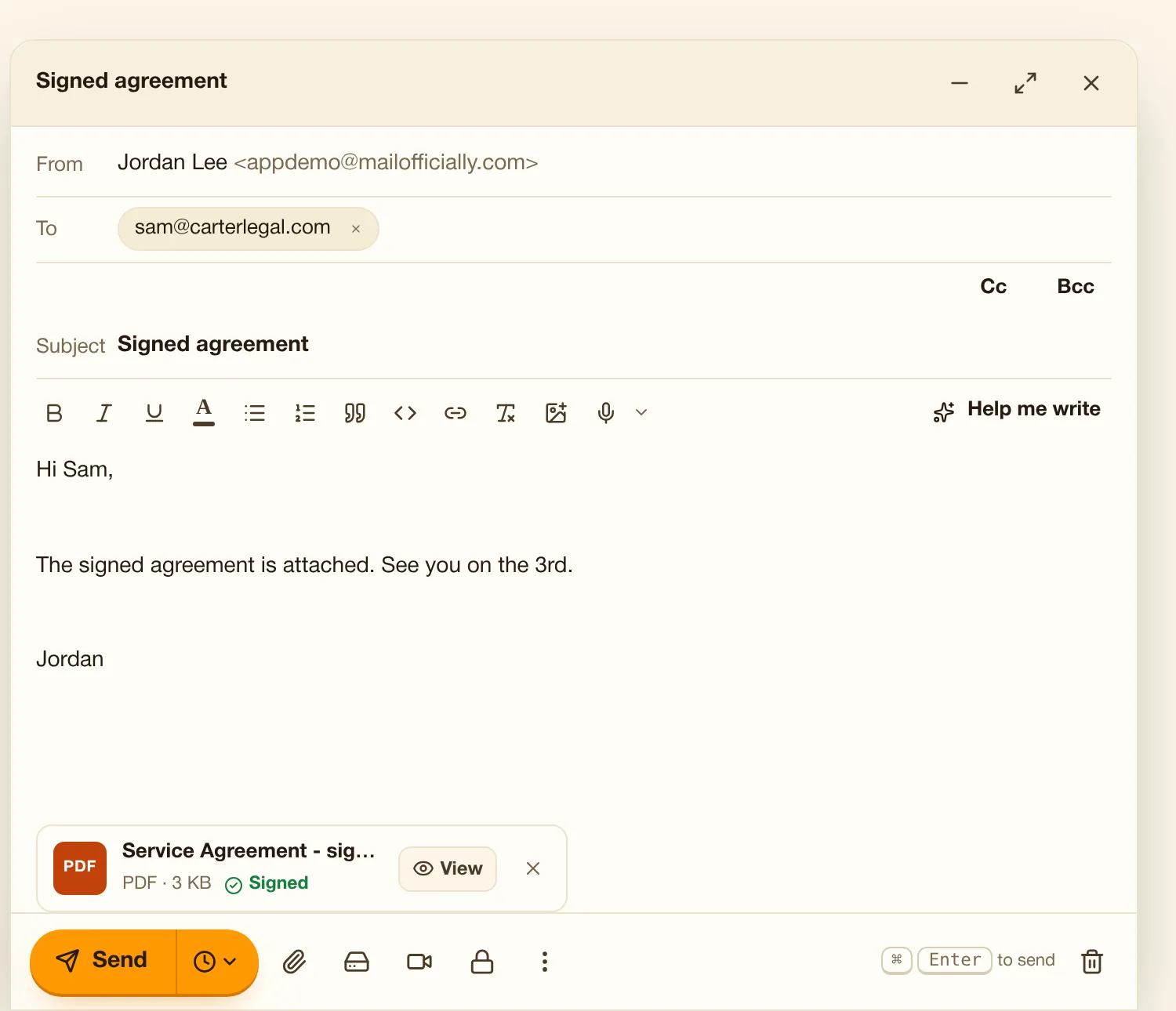
Attach it and press Sign on the attachment card. While you sign, the draft shows "Waiting for signature". Come back and the signed copy has already replaced the original: the card says "Signed". Press Send.
Private by design. The file goes from MailOfficially to Sign Officially directly, server to server, through a one-time link that works once and expires after 15 minutes. It is never saved on your computer, and it only opens for your own account. PDFs up to 25 MB.
The desktop app · Windows
Drive Officially for Windows
Your Drive as drive M: in File Explorer. Files you save there go to Drive, and changes in Drive come back to your PC. Includes your shared drives and Shared with me. Works on Windows 10 and 11.
Every PDF in your email has a Sign button that opens it in Sign Officially, our e-signature service, already signed in with your MailOfficially account. No downloading, no uploading, no second password, and no copies left on your computer.
Use it when Sam sends a contract: press Sign on the PDF and sign it without saving a copy to your computer.
The signed copy comes back into your email on its own. Sign a PDF you are about to send and it replaces the attachment in your draft: "Waiting for signature", then "Signed". Sign one you received and send it straight back to the sender.
Use it when Attach the agreement, press Sign, sign it, and the signed copy is already attached when you come back. Press Send.
Email and Drive share your company's storage: plan storage x number of people.
Use it when See how much of the company's storage email and Drive use, person by person.
On screen
Signing a PDF you are sending
On screen
Attach the PDF and press Sign on its card. Sign Officially opens in a new tab with the document, already signed in. Back in your draft, the card shows that it is waiting for your signature.
Waiting for signature: Sign Officially has the document; sign it in the other tab
Nothing downloaded: the file goes from your draft to Sign Officially directly
Keep writing: the draft stays open while you sign
The signed copy, attached for you
On screen
As soon as you have signed, the signed copy replaces the original in your draft and a message confirms it. There is nothing to download or attach again: press Send.
Signed: the card now holds the signed PDF instead of the original
View: check the signed copy before it goes
Send: it goes out like any other attachment
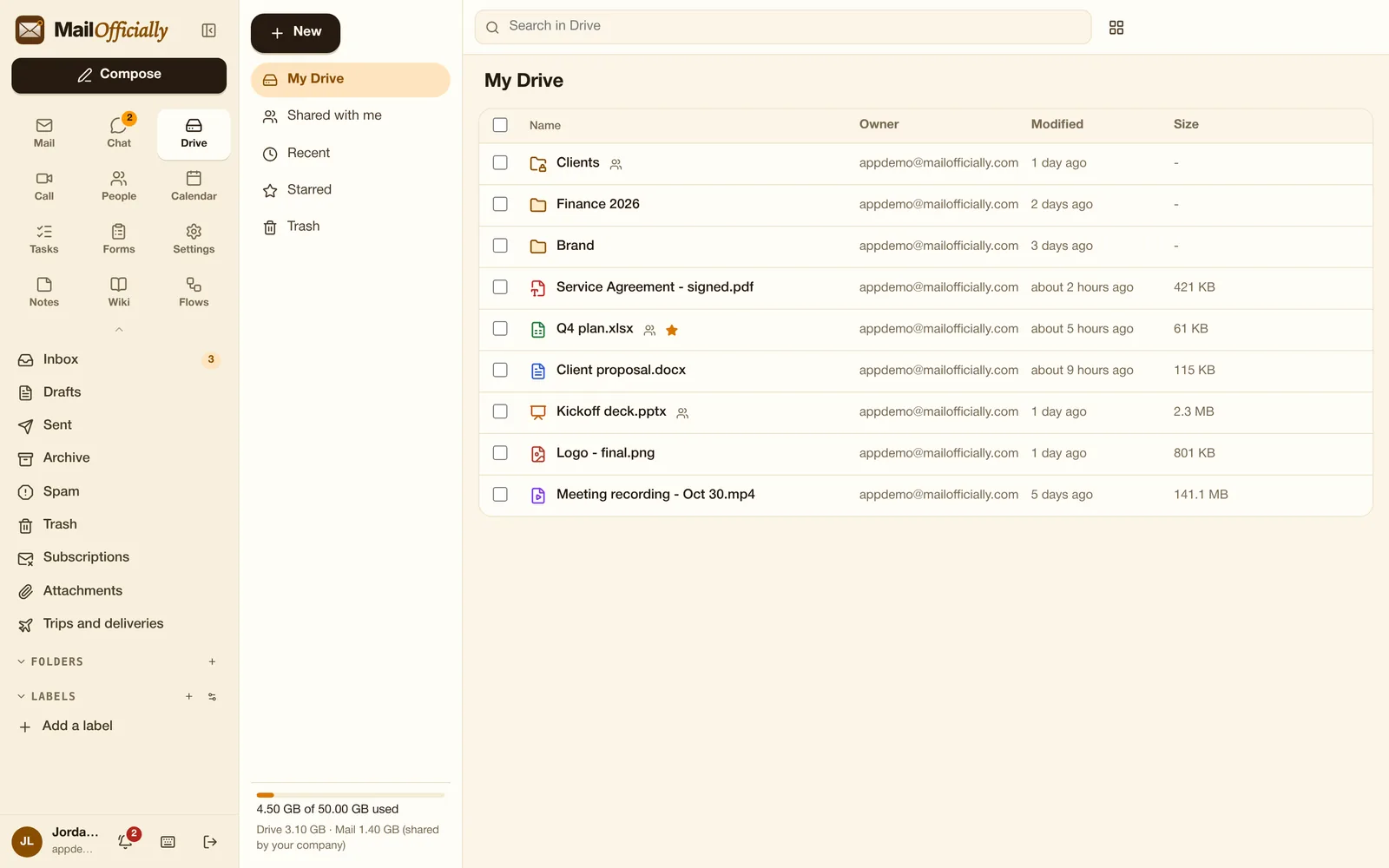
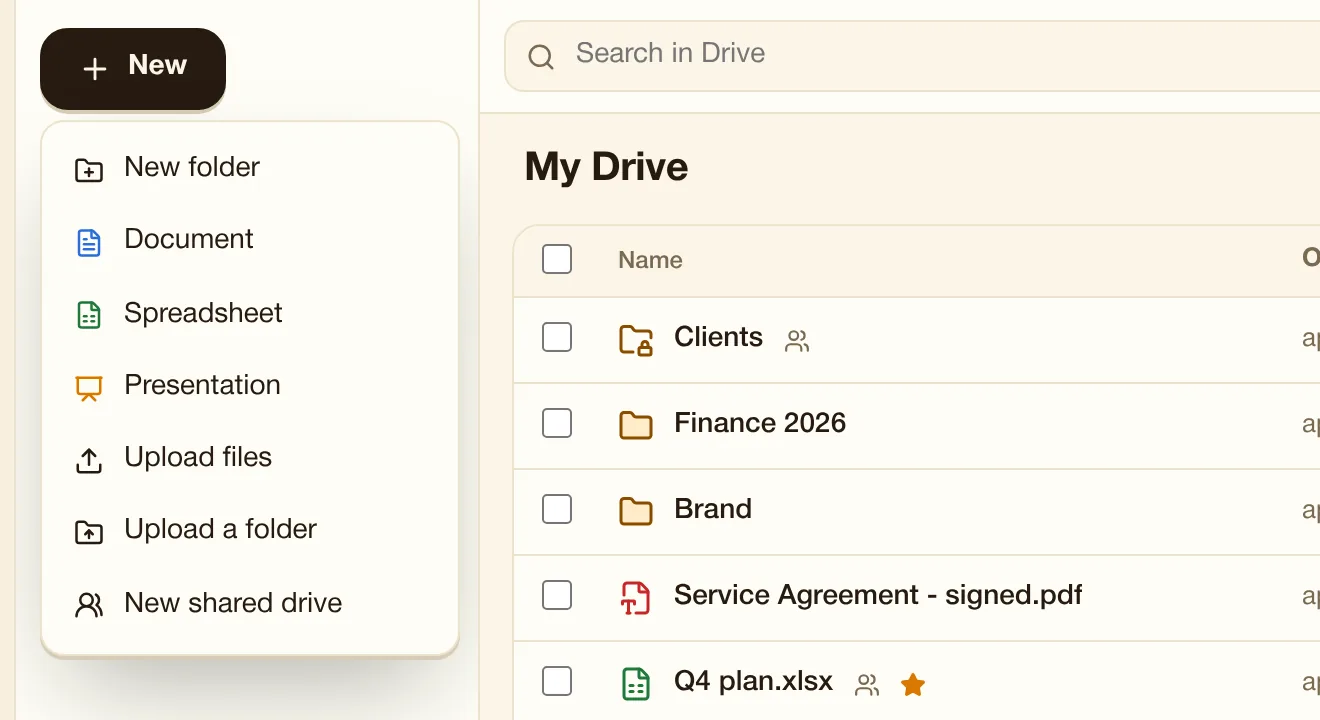
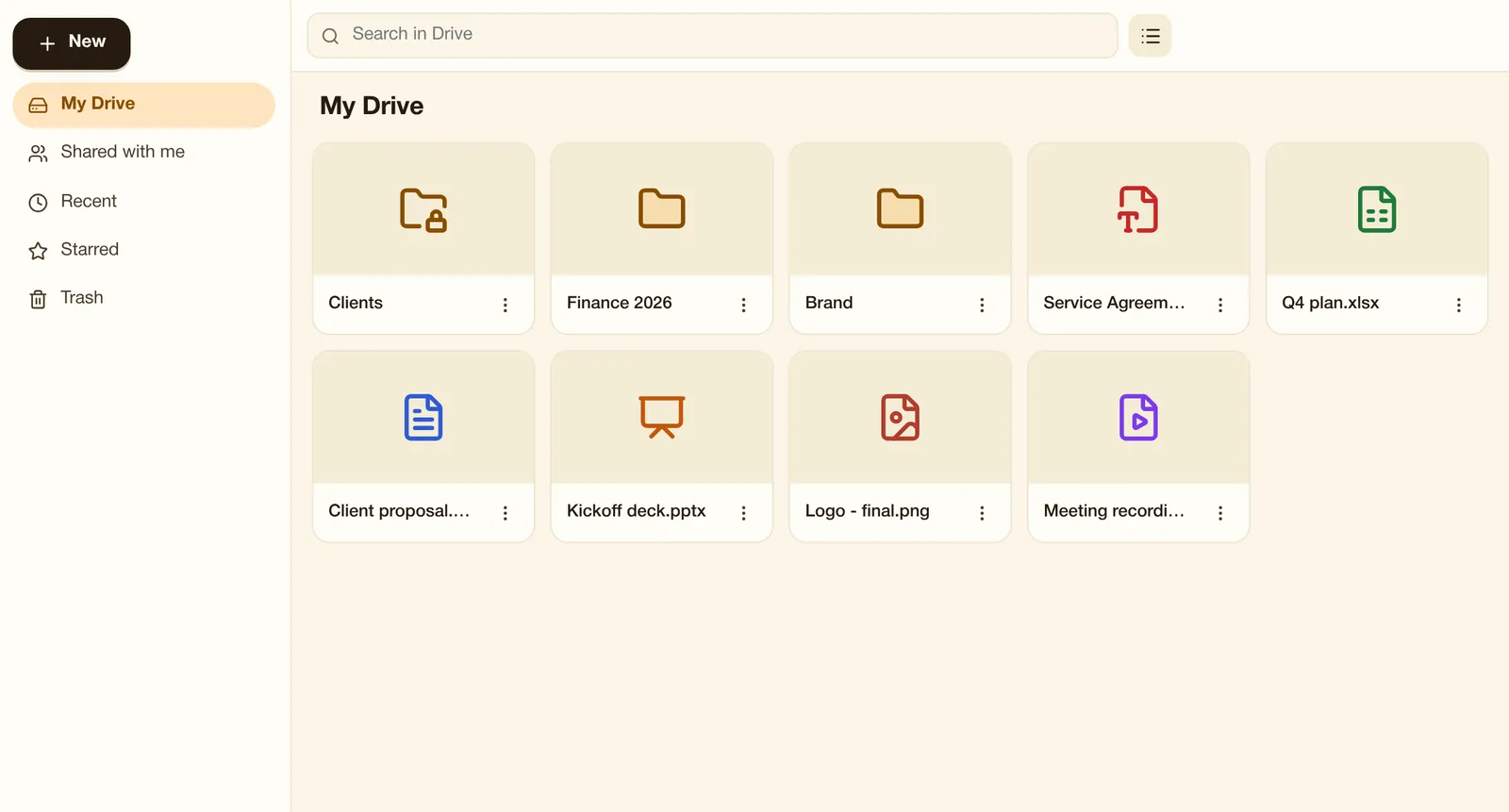
Drive
On screen
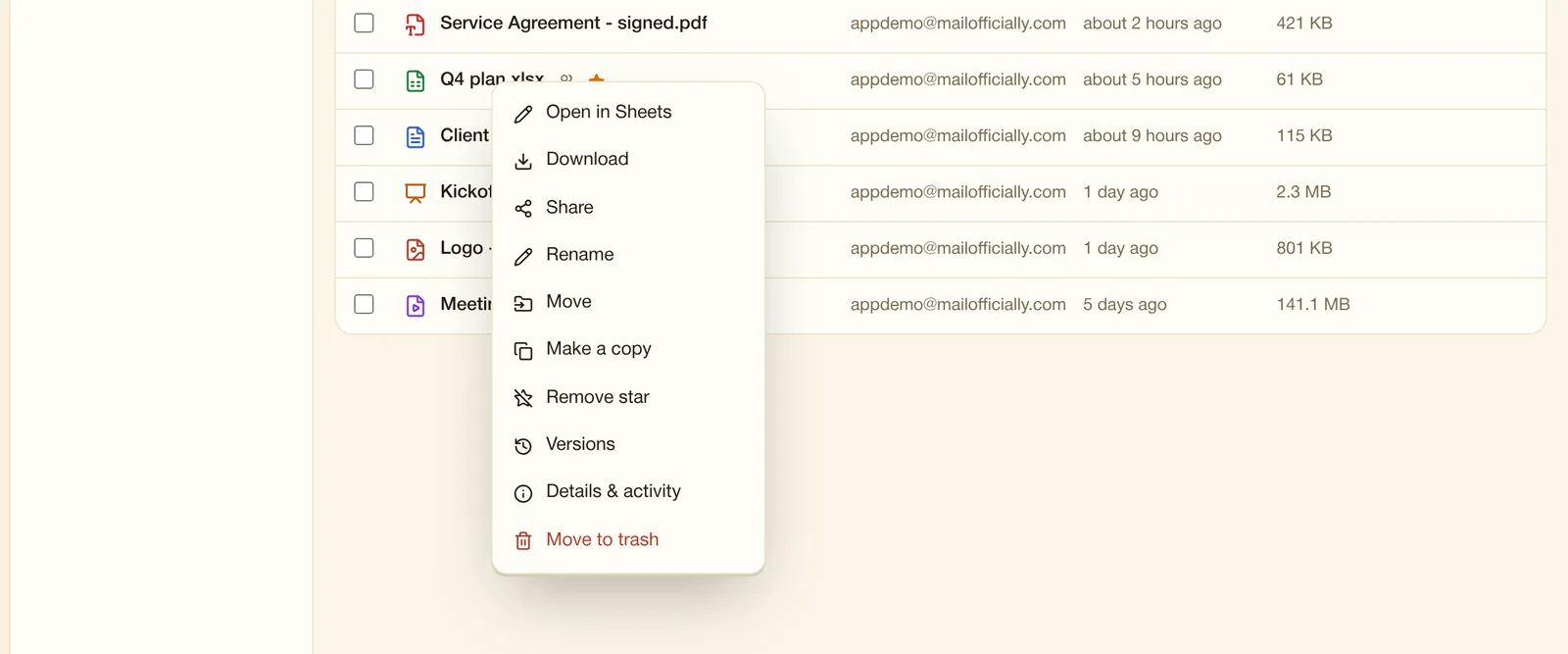
Your files, the ones shared with you, and your team's shared drives. Files are virus-checked and stored encrypted.