Sign in
All plansWebmail at mailofficially.com/app with your full email address and password.
Use it when You sit down at a new laptop: open mailofficially.com/app, type your work address and password, and your mail is there.
 MailOfficiallyDocs
Sign in, protect your account and connect every device.
Webmail at mailofficially.com/app with your full email address and password.
Use it when You sit down at a new laptop: open mailofficially.com/app, type your work address and password, and your mail is there.
Sign in without typing a password, using the lock on your phone or computer.
Use it when You are tired of typing a long password: add a passkey once and sign in with a glance or a fingertip.
A second step at sign-in: a passkey or an authenticator app, plus one-time recovery codes.
Use it when Your password leaks in another company's breach: a thief still can't get in without your phone.
Depending on your company's rules you choose your own password, set up 2-step, then add your sender name and a personal recovery email.
Use it when A new hire signs in on day one: they set their own password, 2-step, sender name and recovery email in two minutes.
A personal address outside your company that receives password-reset links, together with your mailbox.
Use it when You forget your password on a Monday morning: a reset link reaches your personal email, and you are back in.
Stay signed in to up to 5 MailOfficially accounts and switch between them without a password.
Use it when You run two businesses: keep both mailboxes signed in and switch between them in one click, no password.
Settings are found automatically from your email and password.
Use it when Your accountant prefers Outlook: they add the account with just address and password, the settings fill in themselves.
Calendars, contacts and tasks sync with your phone's own apps and Outlook.
Use it when You add a meeting on your iPhone's own Calendar app and it appears in MailOfficially on your laptop.
Everyone starts with Simple: a clean, calm inbox with pictures loaded privately and trackers removed. Advanced adds team notes and assigning in shared inboxes, tracker notices, image controls and templates, switched on for you by our team.
Use it when Most staff want a calm inbox (Simple); your support team asks us for Advanced to get templates and team notes.
iPhone and Android apps with mail, Chat, Call Officially and Drive, instant notifications, Face ID lock, a Priority inbox, follow-ups, undo send and protected email. Desktop apps for Windows 10/11 and Mac (Apple chip and Intel).
Use it when You travel a lot: the phone app gives you mail, chat, calls and Drive with Face ID lock, all in one place.
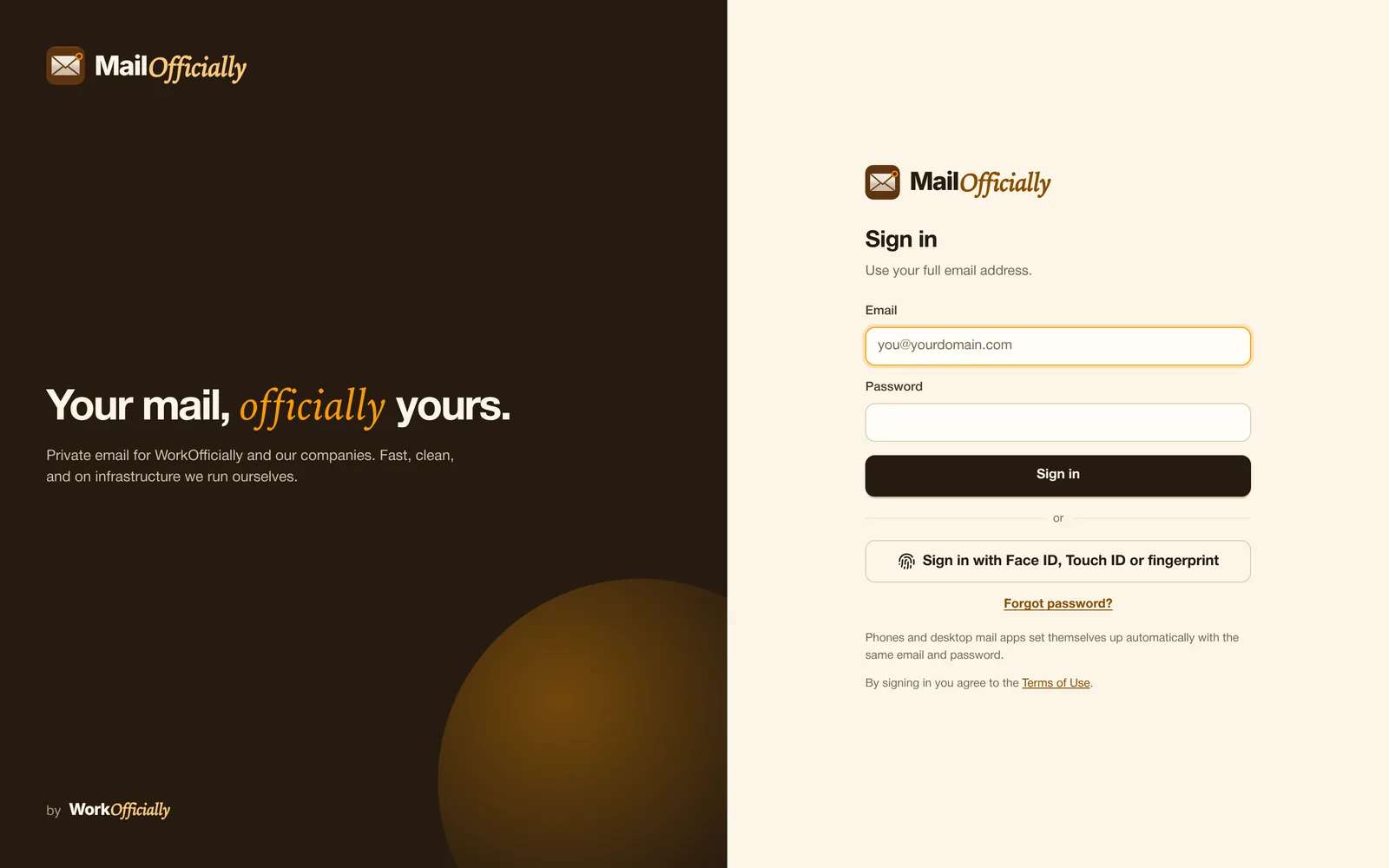
Everyone signs in at mailofficially.com/app. The same page works on any computer, and your company logo appears here once your admin adds it.
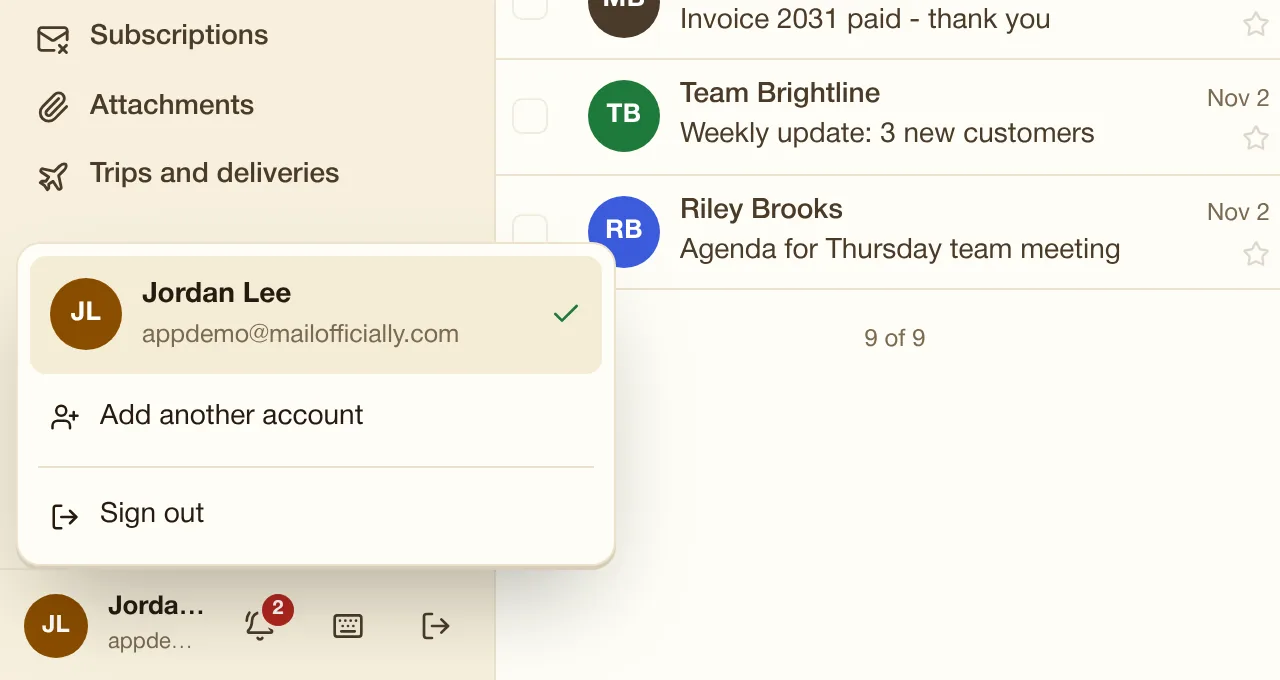
Click your name at the bottom left to switch between up to 5 MailOfficially accounts in the same browser, without typing a password again.
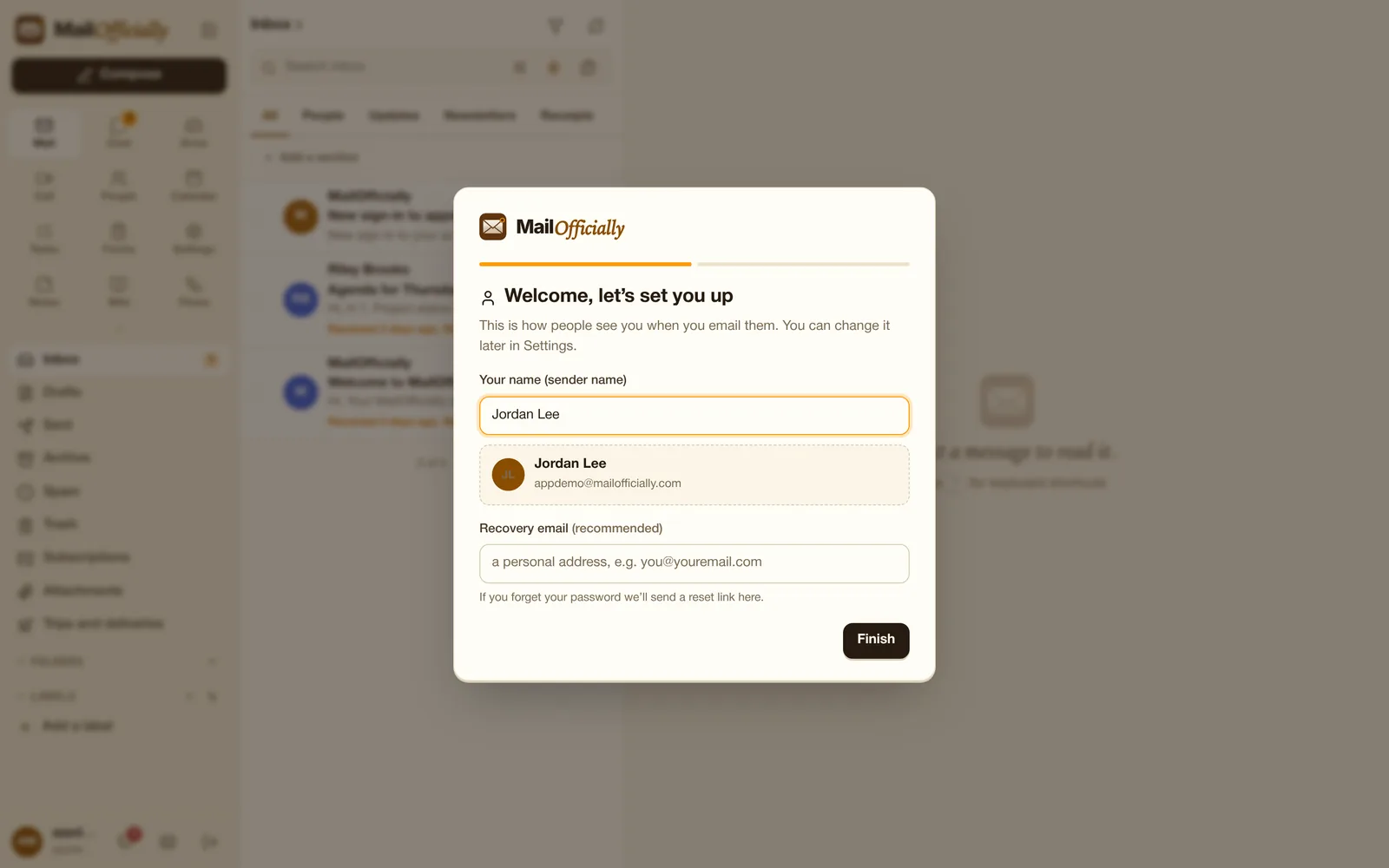
The first time you sign in, MailOfficially asks for the name people see when you email them and a personal recovery email. Depending on your company, it also asks you to choose your own password and set up 2-step.
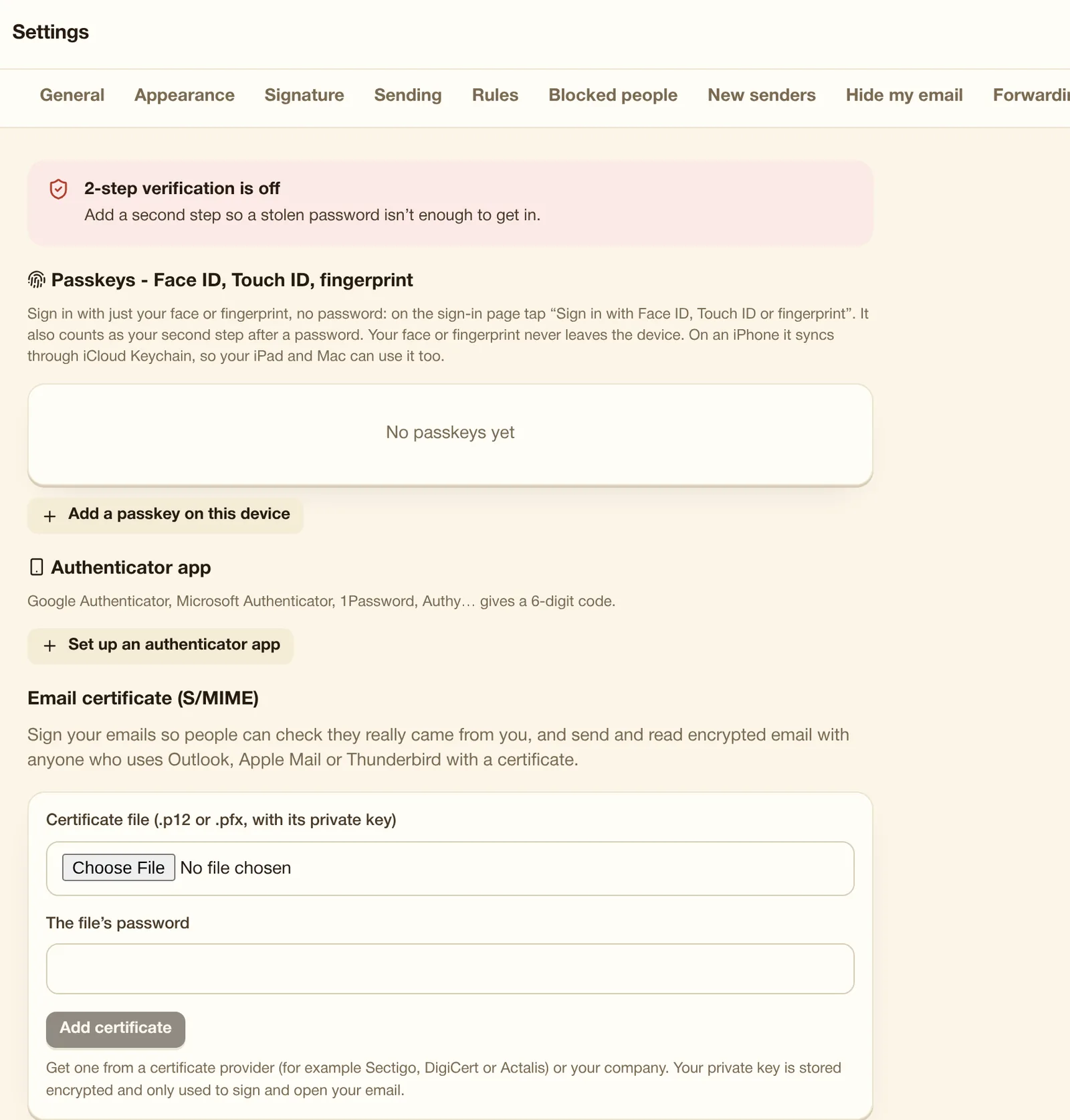
Where you add passkeys, set up an authenticator app, make recovery codes and add an email certificate for S/MIME.