Folders and labels
All plansFolders with sub-folders and colors; several colored labels on one email (other mail apps see them too).
Use it when Keep a folder per client and color labels like "Invoice" and "Urgent" on the same email.
 MailOfficiallyDocs
Keep the inbox under control in seconds, and find anything.
Folders with sub-folders and colors; several colored labels on one email (other mail apps see them too).
Use it when Keep a folder per client and color labels like "Invoice" and "Urgent" on the same email.
Keep an email at the top of its folder.
Use it when Pin the email with the office Wi-Fi details to the top of your inbox.
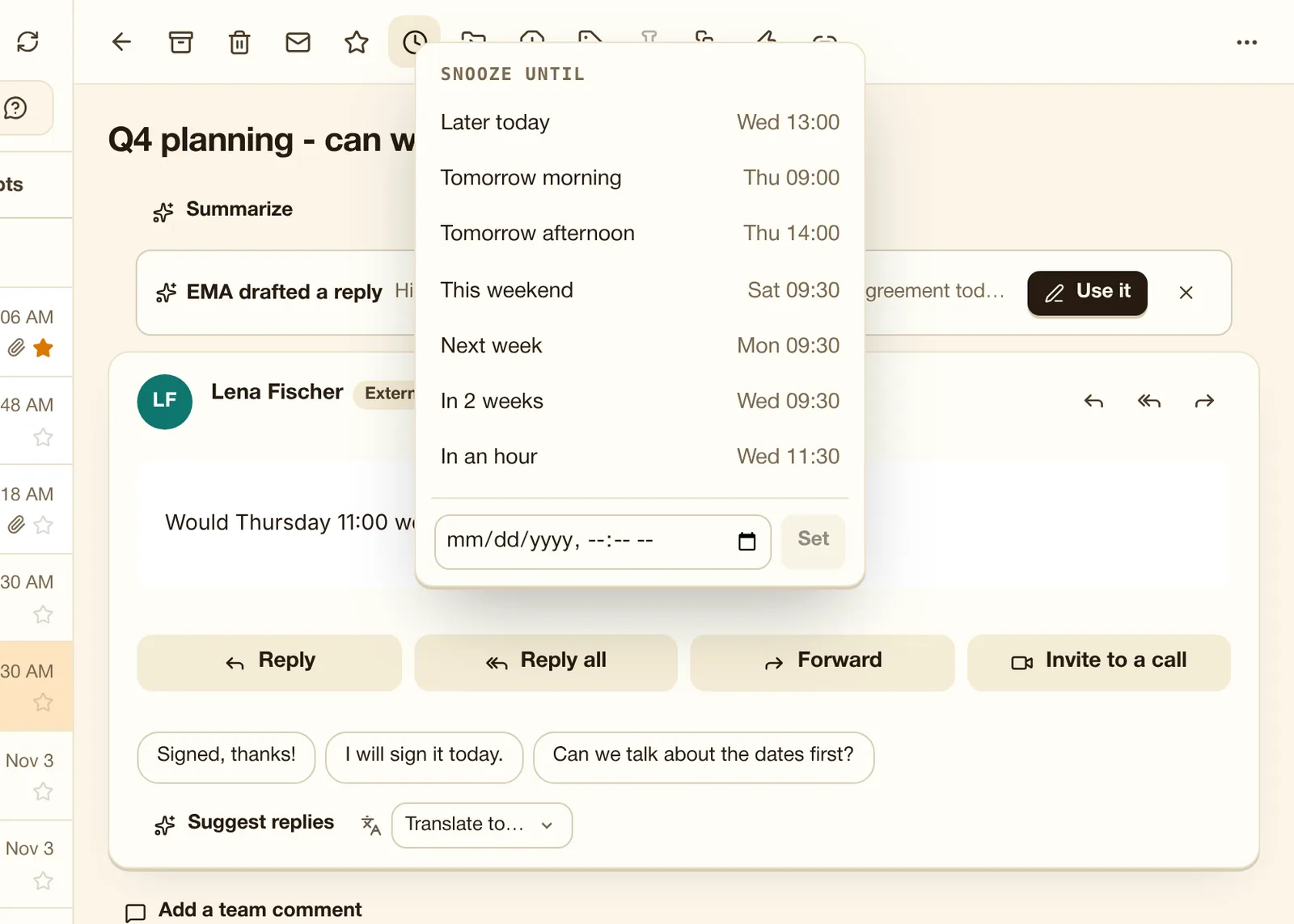
Hide an email until later today, tomorrow, the weekend, next week or any date; it comes back to the top, unread.
Use it when A reminder about next week's renewal: snooze it to Monday 9:00 so it comes back when you need it.
Two stacks for emails to come back to; Reply later has a focus mode to answer them one by one.
Use it when Ten emails that need a careful answer: put them in Reply later and clear them in one focused session.
Move all email from a sender to Trash, archive it or keep only the newest, also for their future email. Undo right after.
Use it when Delete every promotional email from one store, and keep its future ones out of your inbox too.
Rename a subject just for you, or merge two conversations into one.
Use it when A client's email says "Re: hi": rename it to "Website contract" so you can find it.
A note on an email that only you see.
Use it when Note "agreed 10% discount on the phone" on an email; only you see it.
Your own one-click buttons that run several actions: move, mark read, star, archive, delete, forward or reply (with a template, in the Advanced experience).
Use it when One button that labels an email Invoice, forwards it to accounts@ and archives it.
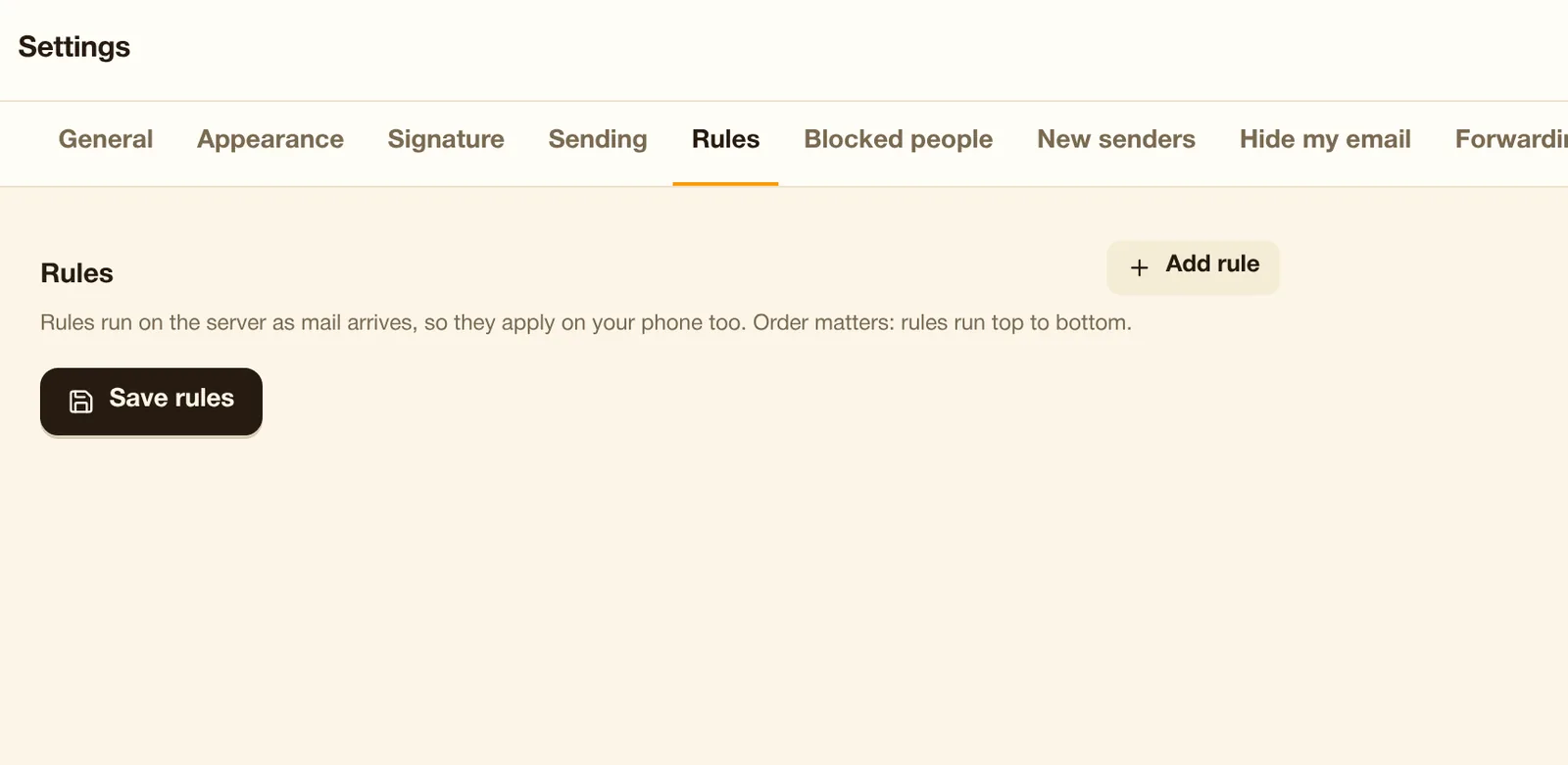
Server-side rules that also work on your phone: match From, To, Subject, Body or headers, then move, copy, star, mark read or delete.
Use it when Move every email from your accountant into the Finance folder automatically, even on your phone.
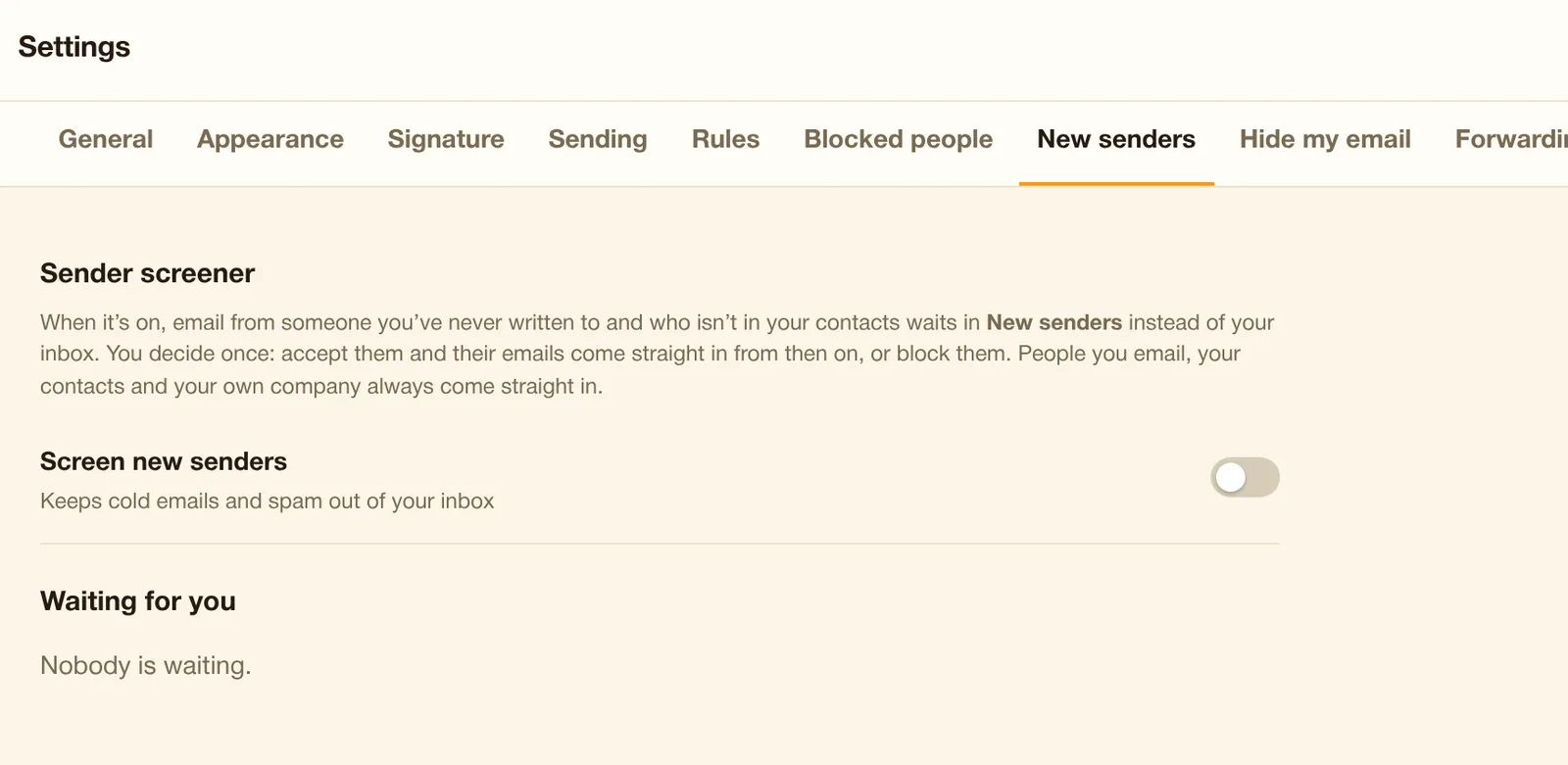
Email from people you have never written to waits in "New senders" until you Accept or Block.
Use it when Cold sales emails wait in New senders until you accept or block them.
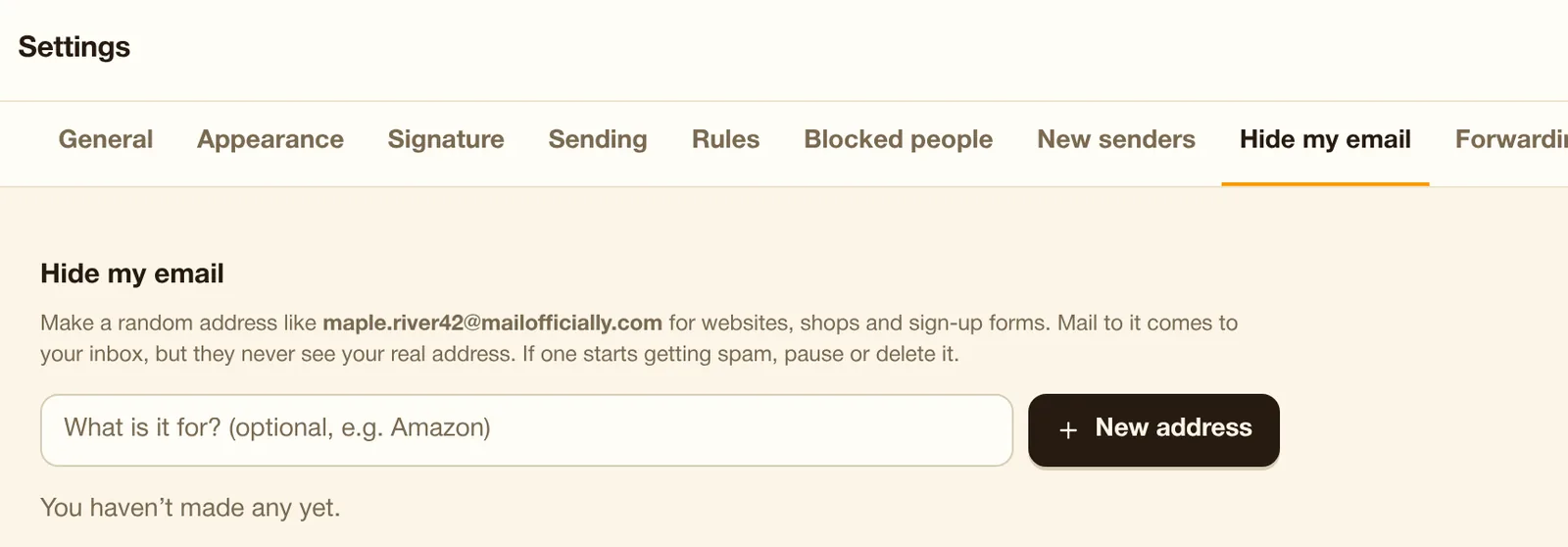
Up to 50 random forwarding addresses for sign-ups; pause or delete any of them.
Use it when Sign up for a trade show with a random address; turn it off when the spam starts.
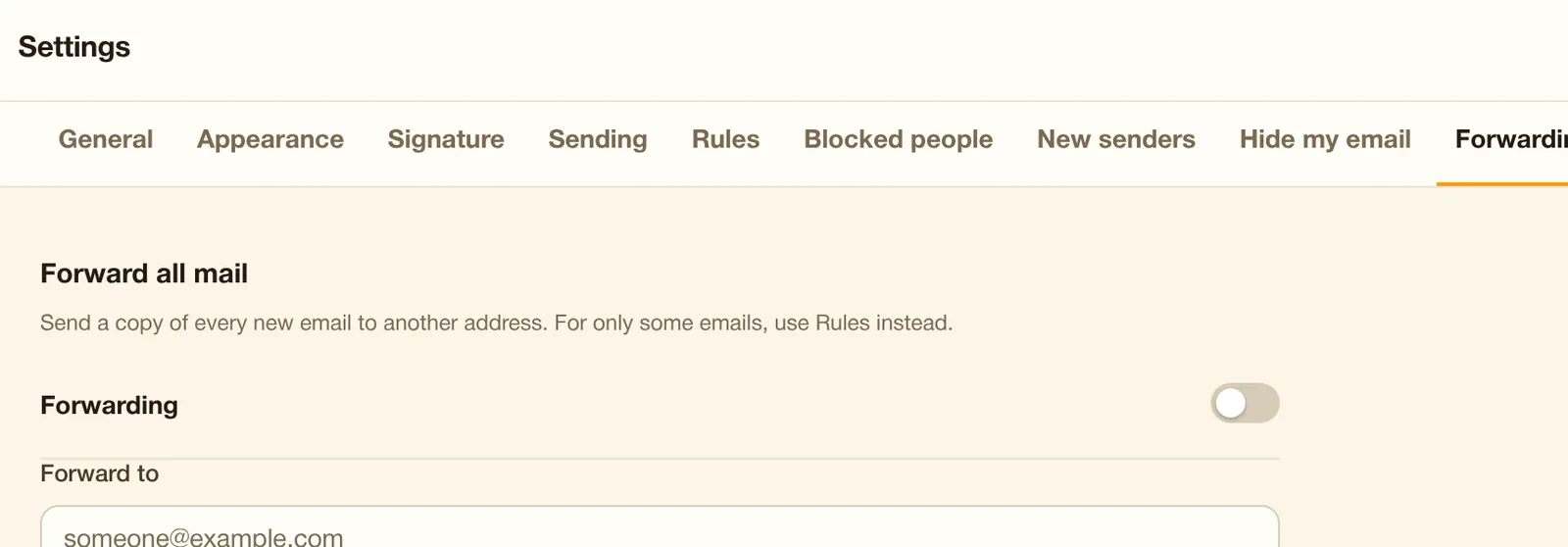
Forward all new mail (keeping a copy), or send an automatic reply with optional dates.
Use it when On holiday: send an automatic reply with dates and who to contact instead.
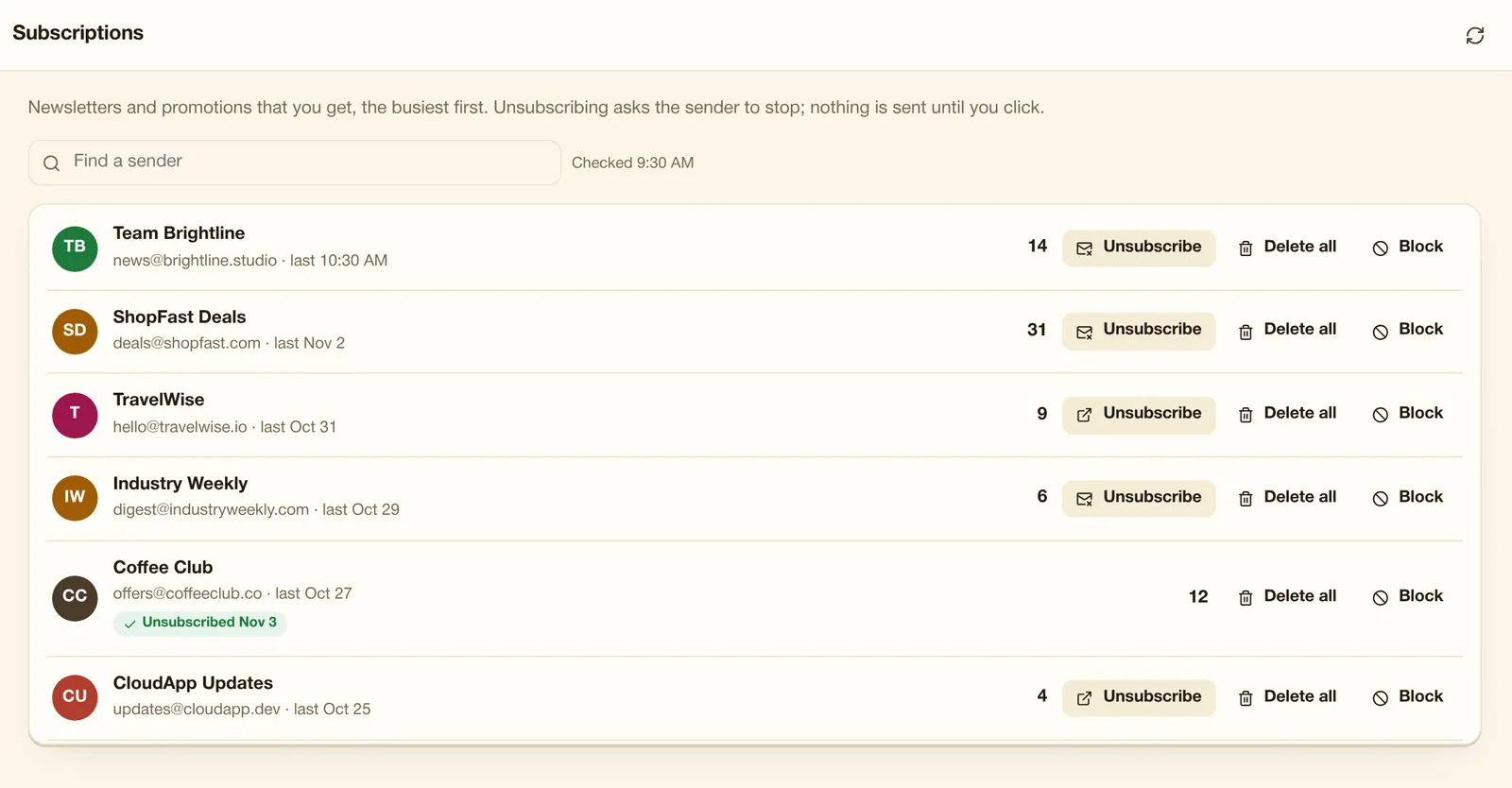
Every newsletter you get, busiest first, with Unsubscribe, Delete all and Block.
Use it when See every newsletter you get, busiest first, and unsubscribe from ten in a minute.
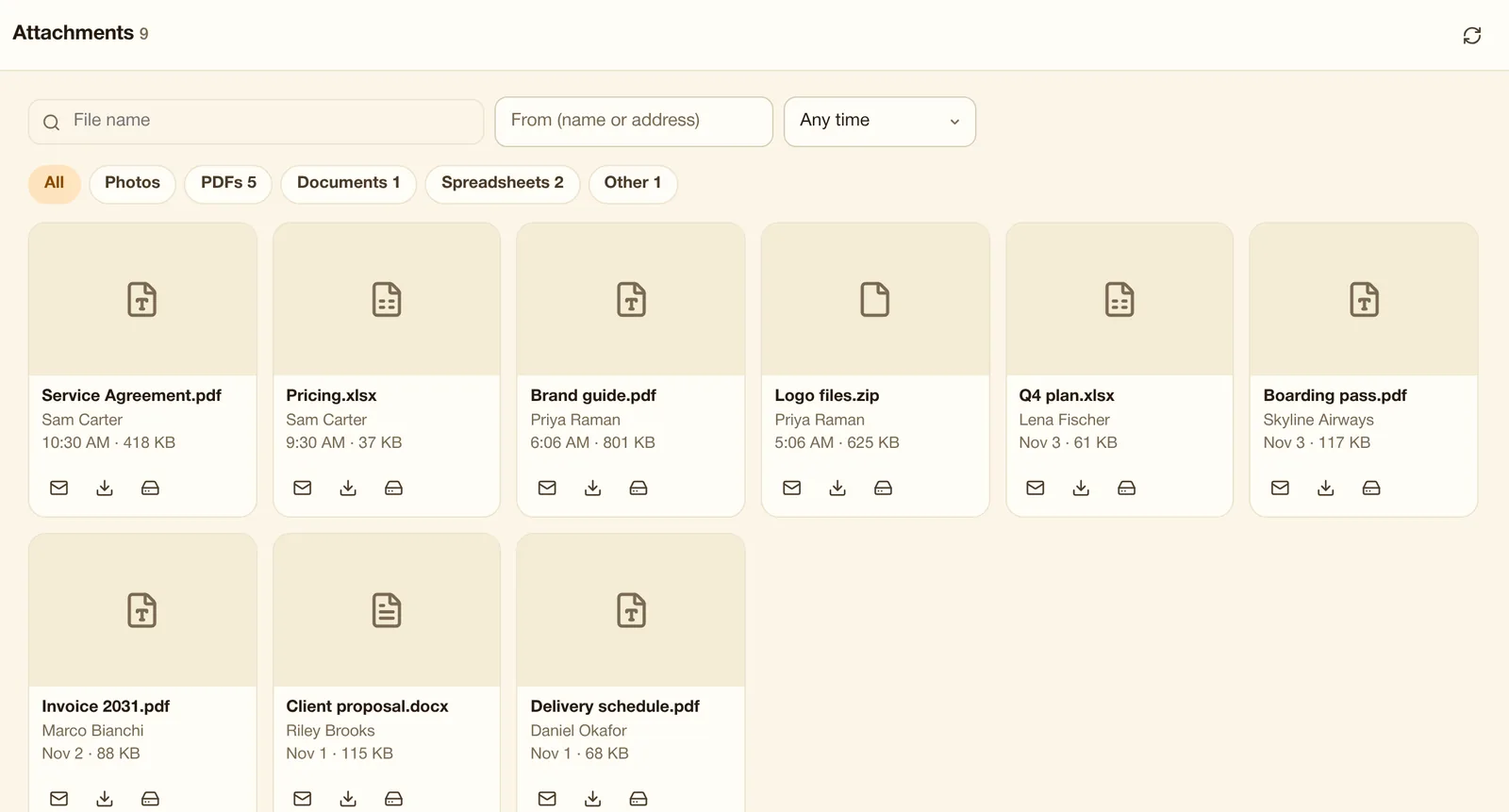
Every file and photo you received, searchable, with Open, Download and Save to Drive.
Use it when Find "that PDF Priya sent last month" without remembering which email it was in.
Turn any email into a note in Notes, with a reminder if you like.
Use it when Turn the delivery instructions email into a note with a reminder for Friday.
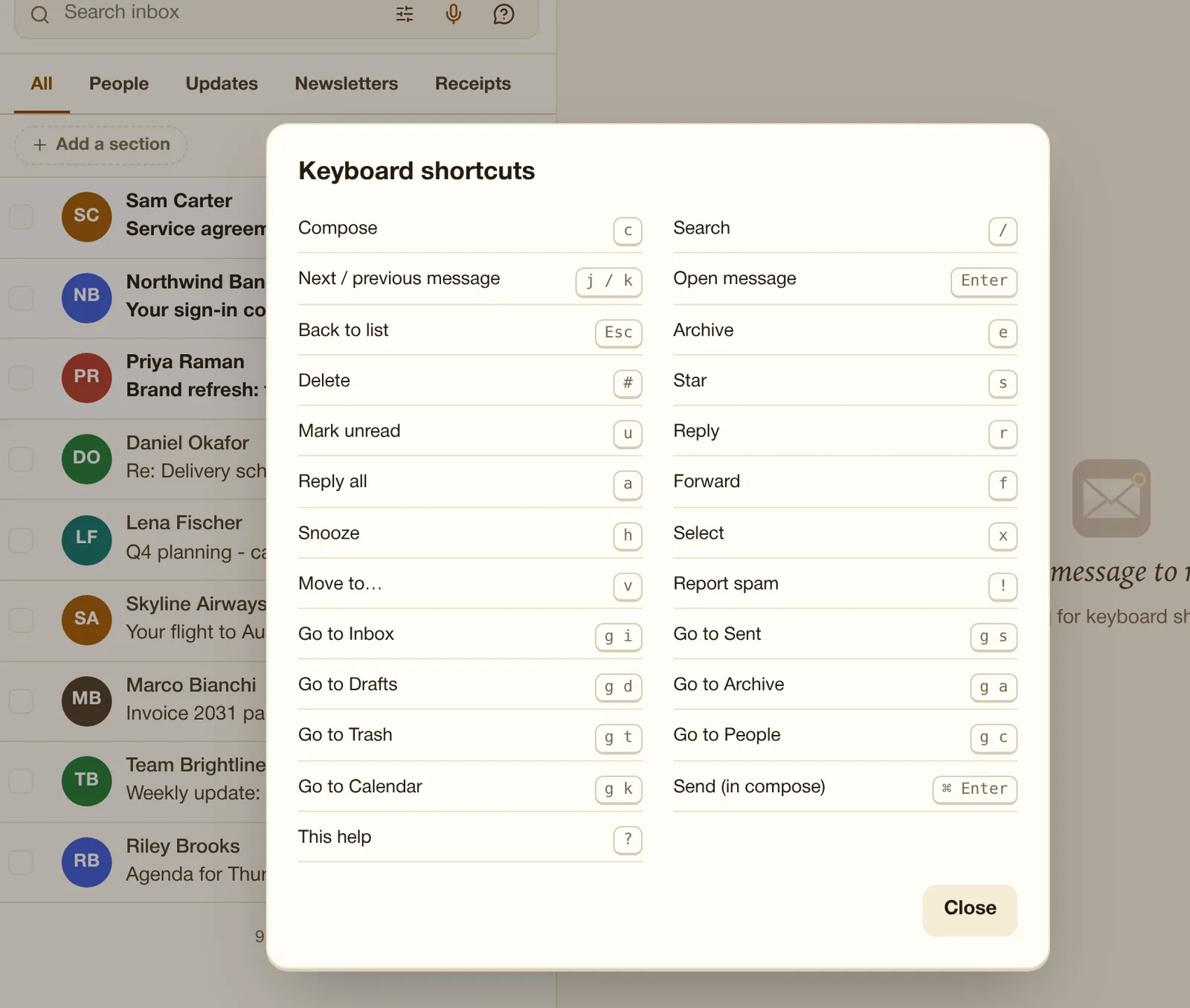
Fly through your inbox without the mouse: c compose, / search, j/k next and previous, e archive, # delete, r reply, a reply all, f forward, h snooze, g i Inbox, ? for the full list.
Use it when Clear the inbox without the mouse: e to archive, r to reply, j and k to move.
Keep the searches you use often in the sidebar, one click away.
Use it when Keep "unpaid invoices from this year" one click away in the sidebar.
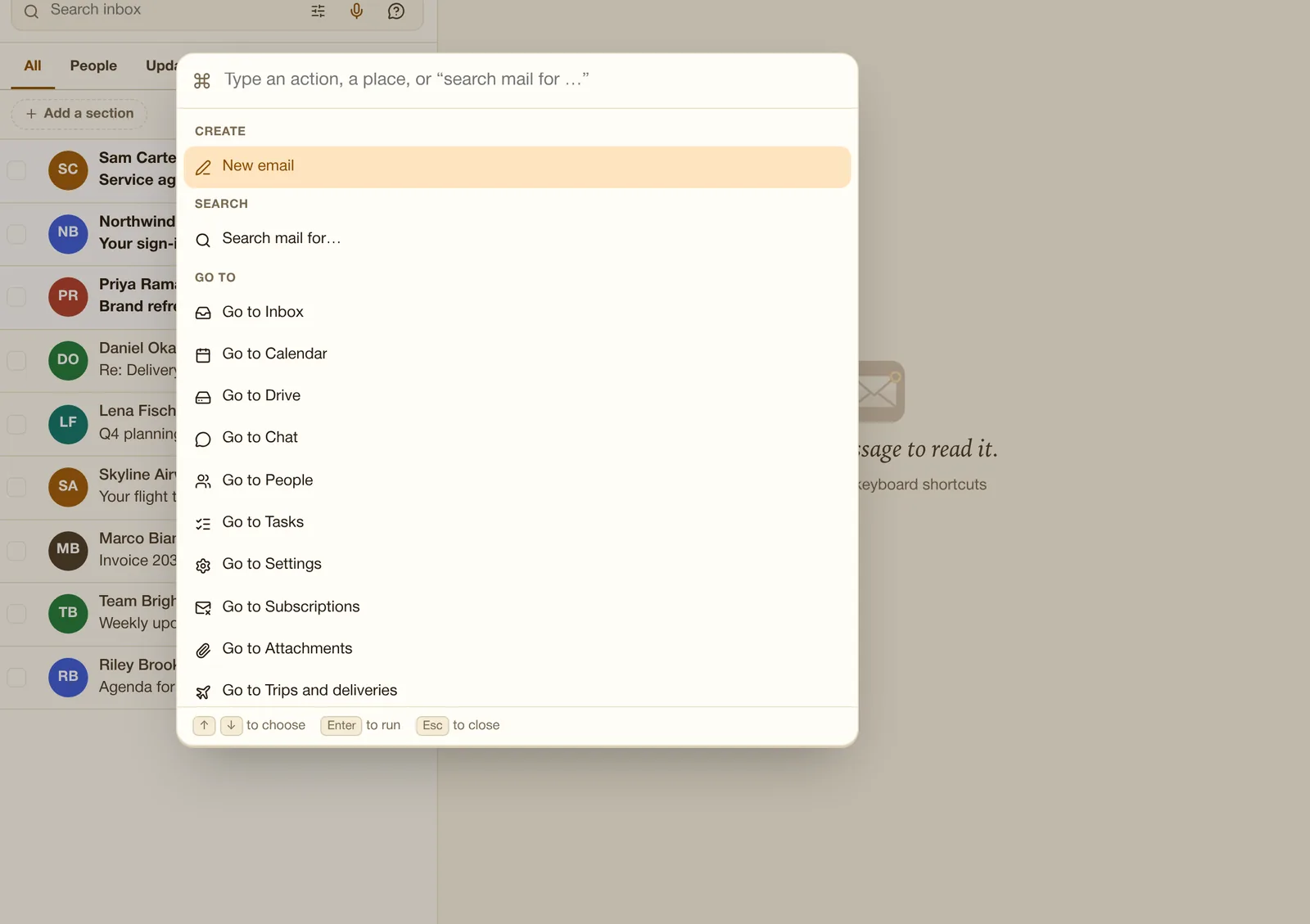
Type what you want to do: archive, move, go to calendar, search, run a quick step.
Use it when Type "move to Clients" or "go to calendar" instead of hunting for buttons.
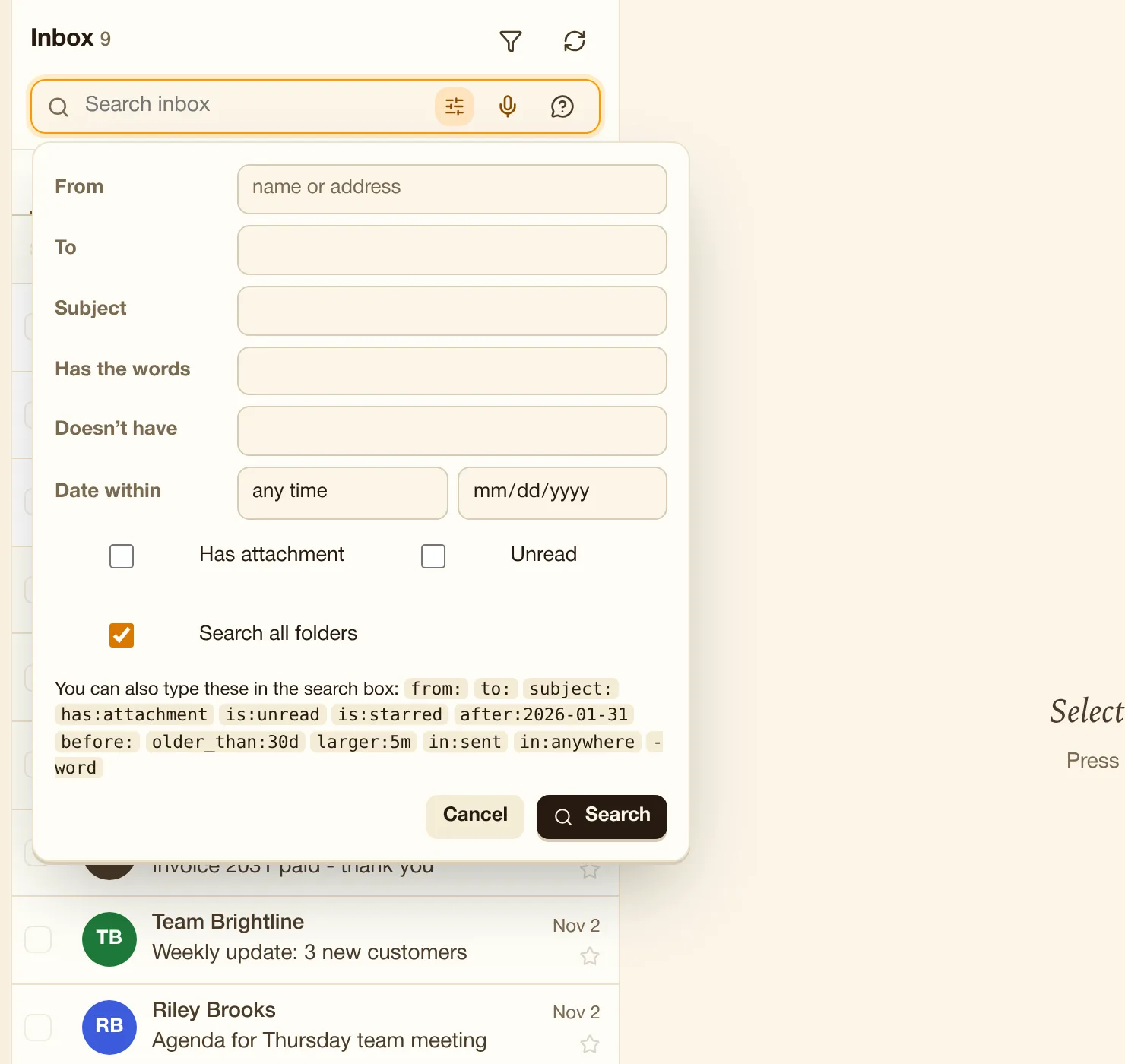
Search one folder or all mail, with Search options (date, attachment, unread).
Use it when Find every email from Lena with an attachment from last quarter in seconds.
Discuss an email with colleagues right beside it, with @mentions. Comments never reach the people on the email.
Use it when Ask a colleague "@Riley can you take this one?" beside the email, without the client seeing.
Share a copy of one email or conversation with colleagues (signed in, can comment) or, on Crest, anyone with the link for up to 30 days. See who opened it; turn links off any time.
Use it when Show your lawyer one email thread with a link that expires in 7 days.
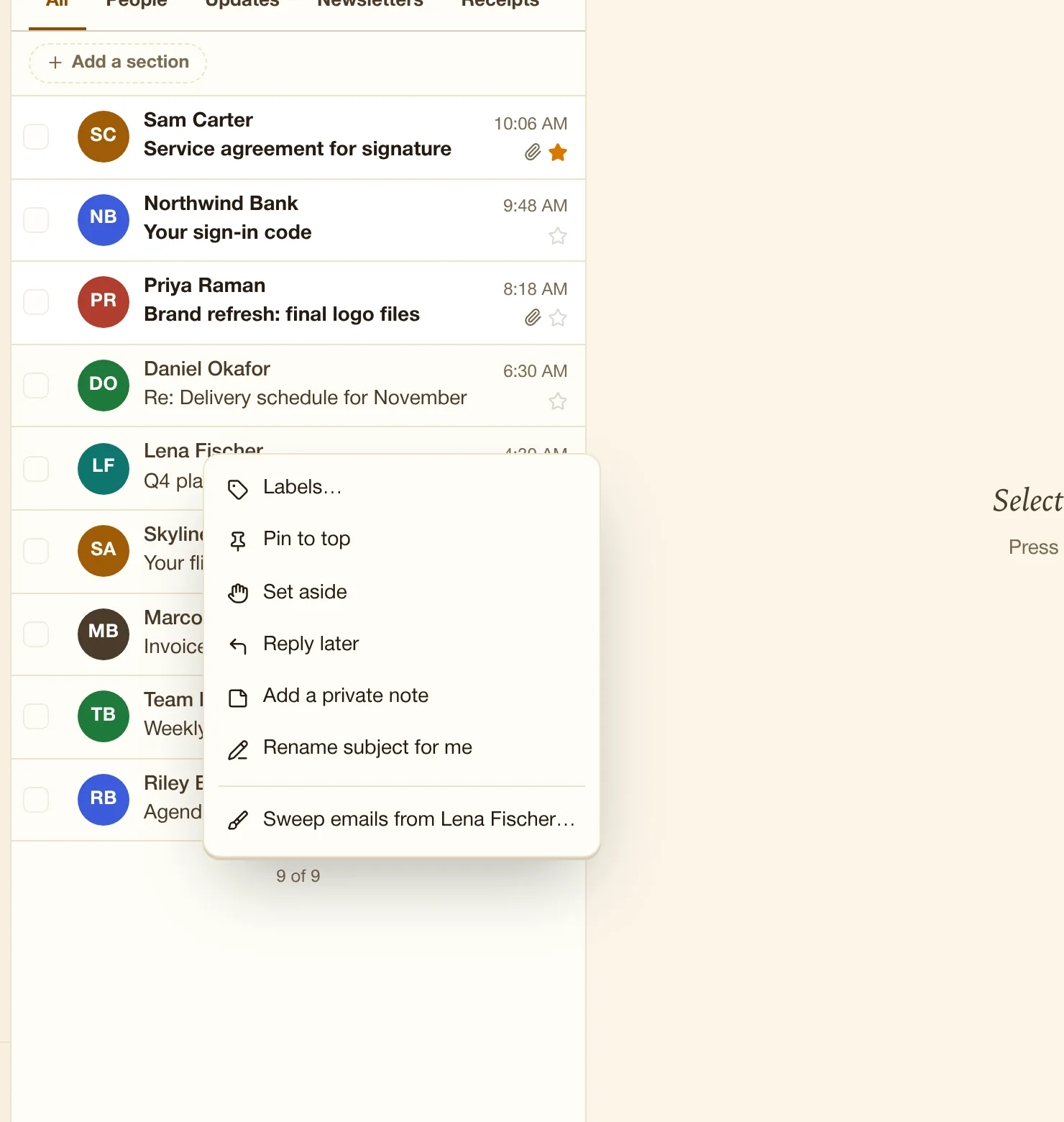
Right-click any email in the list for the quick actions, without opening it.
Press Ctrl+K (Cmd+K on a Mac) and type what you want to do. Arrow keys choose, Enter runs, Esc closes.
Press ? anywhere in Mail to see every shortcut.
Every newsletter and promotion you get, the busiest first. Unsubscribing asks the sender to stop; nothing is sent until you click.
Every file and photo you received, newest first, searchable by name and sender.
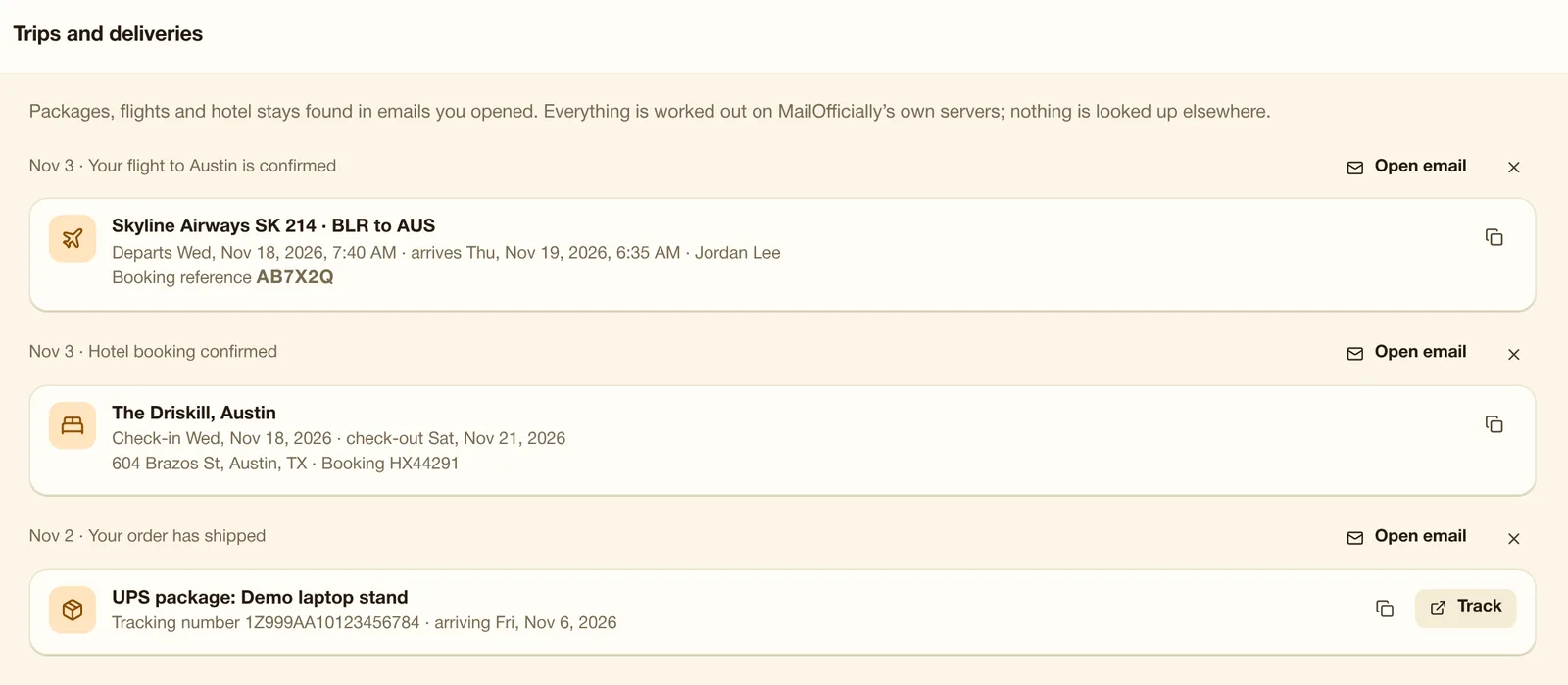
Flights, hotel stays and packages found in your email, in one list. Everything is worked out on MailOfficially's own servers; nothing is looked up elsewhere.
The sliders icon in the search box opens Search options: narrow down by person, words, date, attachments and folder.
The clock in the toolbar hides an email until the time you pick. It comes back to the top of your inbox, unread.
Rules run on the server as mail arrives, so they also work on your phone. Order matters: rules run top to bottom.
With the screener on, email from someone you have never written to waits in New senders until you accept or block them.
Make a random address for websites, shops and sign-up forms. Mail to it comes to your inbox, but they never see your real address.
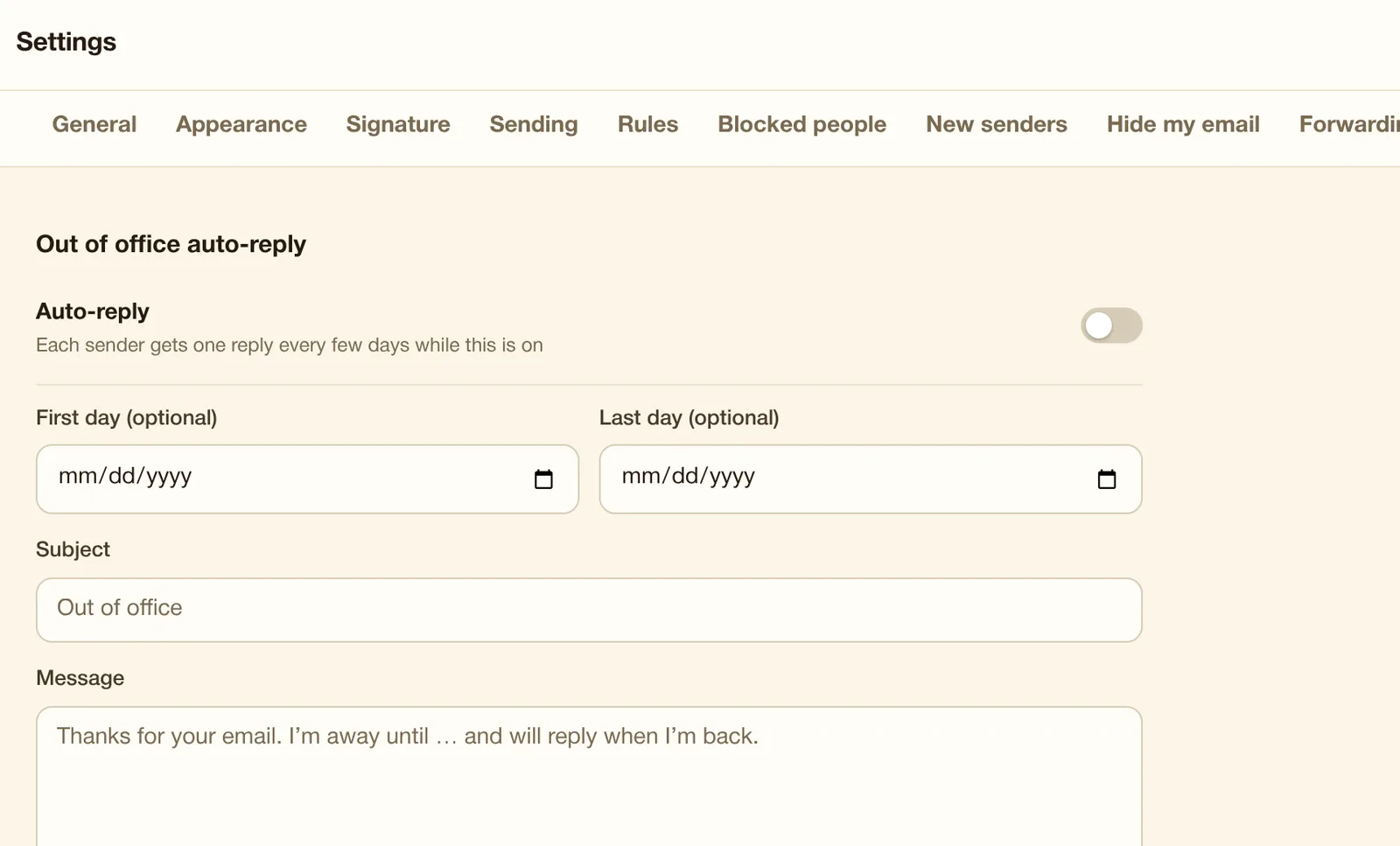
An automatic reply while you are away, with optional first and last days.
Send a copy of every new email to another address. For only some emails, use Rules instead.